



Social media has recently been lit up with claims that a recent Windows update is killing SSDs. According to Microsoft, Windows isn’t at fault. In fact, recent reports show that this problem only occurs on drives with pre-release firmware updates from storage manufacturer Phison. (Pre-release firmware updates are internal builds that never should’ve seen the light of day in actual consumer hardware.)
The good news is, the latest Windows update won’t kill your SSD. Even if you’re affected, you can restore your drive with a firmware update. The bad news is, your SSD can still fail for a number of other reasons.
Putting Windows Update aside, let’s talk about some of the other real threats to your SSD and what you can do to protect it.
Check for SSD firmware updates
SSD manufacturers provide utilities that check for firmware updates and monitor your drive’s health. They’re worth installing—and it’s especially true since this recent issue is related to pre-release firmware updates.
It’s a good idea to check if your drive has the latest stable firmware installed. Firmware updates may fix bugs and prevent other problems with your SSD. Avoid any beta firmware update files you may see for download on your SSD manufacturer’s website.
First, you’ll need to figure out what SSD you have in your PC. One easy way to check is to open File Explorer, right-click your “C:” drive, click “Properties,” and then look under the “Hardware” tab. Or you could just download and launch CrystalDiskInfo. (It’s one of our favorite Windows apps for checking the health of your PC.)
Pick the right utility based on your SSD manufacturer: Samsung Magician, SanDisk Dashboard, and Crucial Storage Executive are some big ones. (Despite the name, SanDisk’s utility also handles firmware updates for Western Digital drives.) Perform a web search for the name of your laptop manufacturer and “SSD utility” to find the right utility app.
If you have a laptop, your laptop manufacturer’s software may handle firmware updates for the built-in drive, too. This isn’t guaranteed, though. You may need to run a utility created by the company that manufactured the laptop’s built-in SSD instead.
Chris Hoffman / Foundry
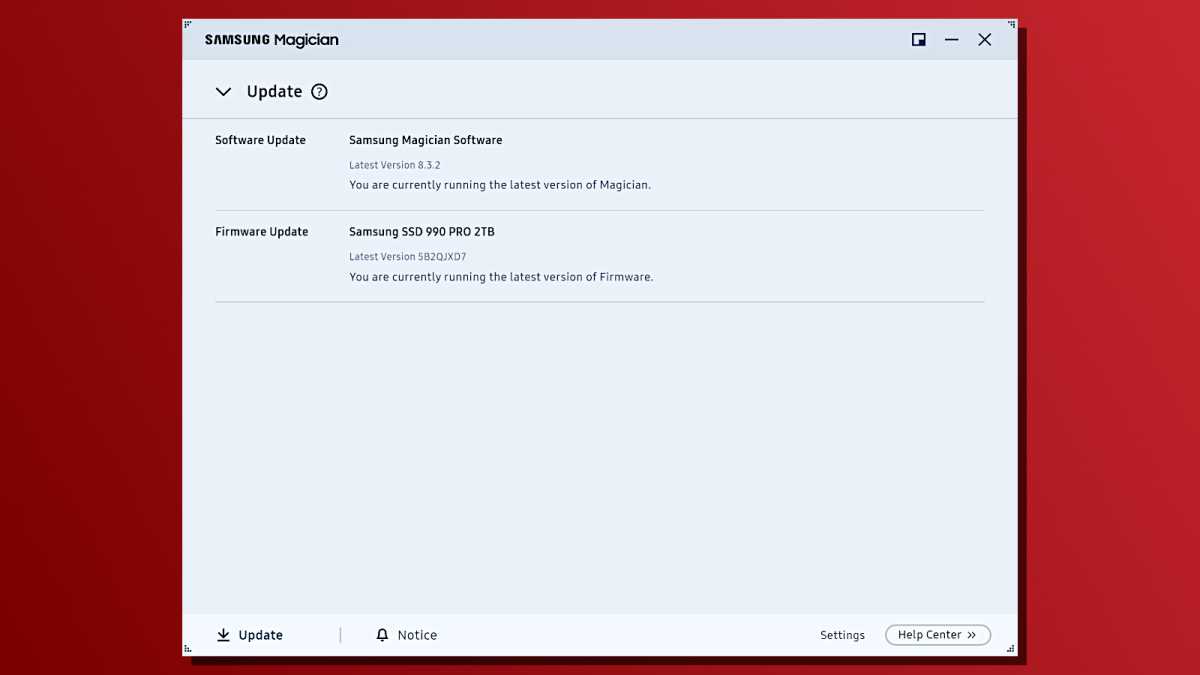
Since I have a Samsung SSD in my desktop PC, I downloaded Samsung Magician. Look for an “Update” option in the app and check if there are any available firmware updates for your drive. If so, make sure you get them installed sooner than later.
Ensure your SSD is properly cooled
SSDs can generate a lot of heat—especially PCIe 4.0 SSDs and PCIe 5.0 SSDs! Some SSDs come with heatsinks and some don’t, and you can also install an aftermarket heatsink on a standard M.2 SSD. But whether you need a cooler for your SSD really depends on the particular drive you have and the general thermal profile of your case.
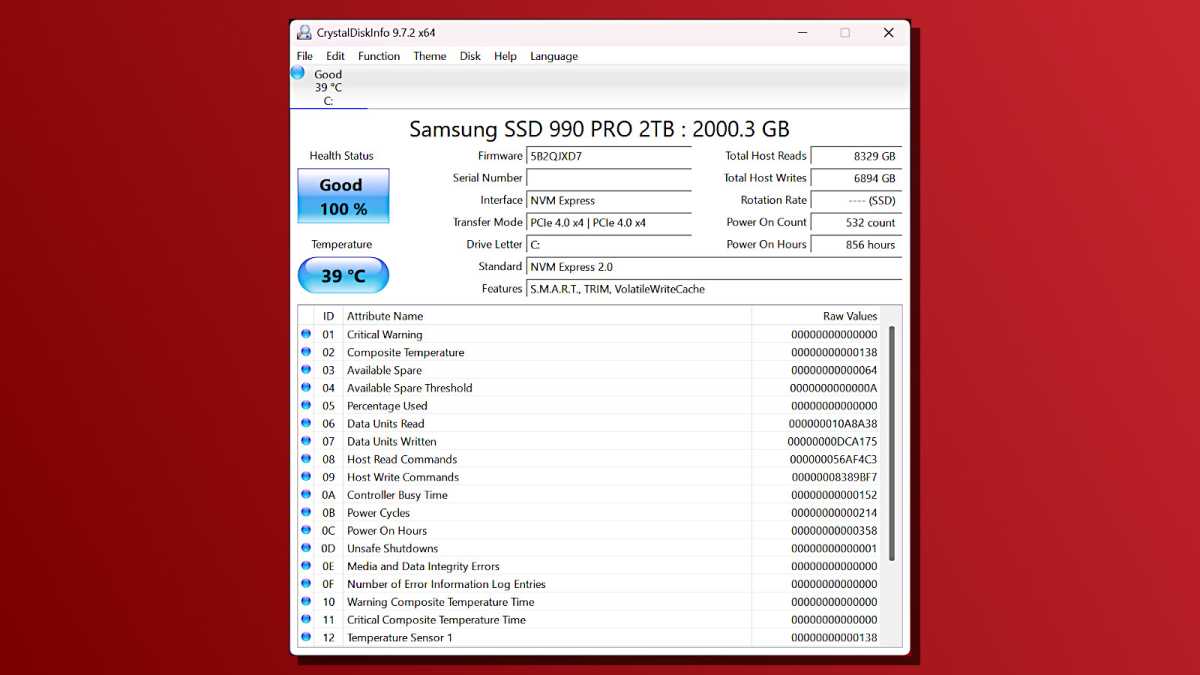
CrystalDiskInfo is a great way to check your SSD’s temperature, health, and other statistics. If you’re curious about how well it’s cooling, you might also want to run a benchmark using CrystalDiskMark (a synthetic benchmark we use to test SSDs here at PCWorld), which can stress test your drive and monitor it during real-world operations like file transfers. But make sure you check its temperature while writing a lot of data to the drive, not just while reading data from it.
Chris Hoffman / Foundry
As a rule of thumb, it’s best to keep your SSD below 70 degrees Celsius. If you see the SSD getting hotter than that, that’s a sign it may be throttling itself and not performing at max potential in an effort to stay cool. The exact temperature you need to watch out for depends on your drive—look up its specs in the manual to find its rated operating temperatures. If it’s too hot, look into improving the airflow in your PC’s case and/or installing a heatsink on your SSD.
Don’t completely fill the drive
Solid-state drives wear down faster when they’re near maximum capacity. That means if your SSD has been at 95% capacity for a long time without much breathing space, it has likely worn down more than necessary.
This is less of an issue these days thanks to overprovisioning—many SSDs have a good chunk of “extra” storage—but it’s still a good idea to keep a decent amount of free space on your SSD.
Nor Gal / Shutterstock.com
For utmost longevity, you should aim to keep your SSD below 80% capacity whenever you can. One added bonus here is that SSD write operations are also faster when the drive is less full, so keeping a lot of free space can help boost your drive’s overall performance.
Don’t cheap out on your SSD
Not all SSDs are made equal. They differ in capacities and write speeds, and some SSDs are rated for more intensive write cycles, which means some drives wear out faster than others.
For consumer-grade SSDs, the biggest difference is TLC (Triple-Level Cell) vs. QLC (Quad-Level Cell) flash memory. Drives with TLC storage have a higher TBW (terabytes written) rating, meaning they can perform more writes before the flash memory cells wear out. The trade-off is that QLC drives tend to be cheaper, for obvious reasons.
Mark Hachman / IDG
A QLC drive is fine for light PC use, but a TLC drive will hold up better if you’re doing a lot of writing to the drive. For example, a 1TB QLC drive may have a 220 TBW rating while a 1TB TLC drive might have a 600 TBW rating. The exact numbers will depend on the individual drives.
If you’re a high-demand PC user—whether you’re downloading huge PC games, editing big media files, or performing any other kind of work that involves regularly writing a lot of data to the drive—you’ll get more mileage out of a TLC drive. The next time you buy a drive, check out our recommendations for the best SSDs for all budgets.
Just in case: Back up your files
Everything breaks eventually. While a modern SSD doesn’t have the fragile moving parts that made traditional mechanical hard drives vulnerable to failure, it can still break down.
You may turn on your PC one day only to find your SSD has failed due to a hardware problem or electrical issue, even if its firmware is problem-free.
Aiseesoft
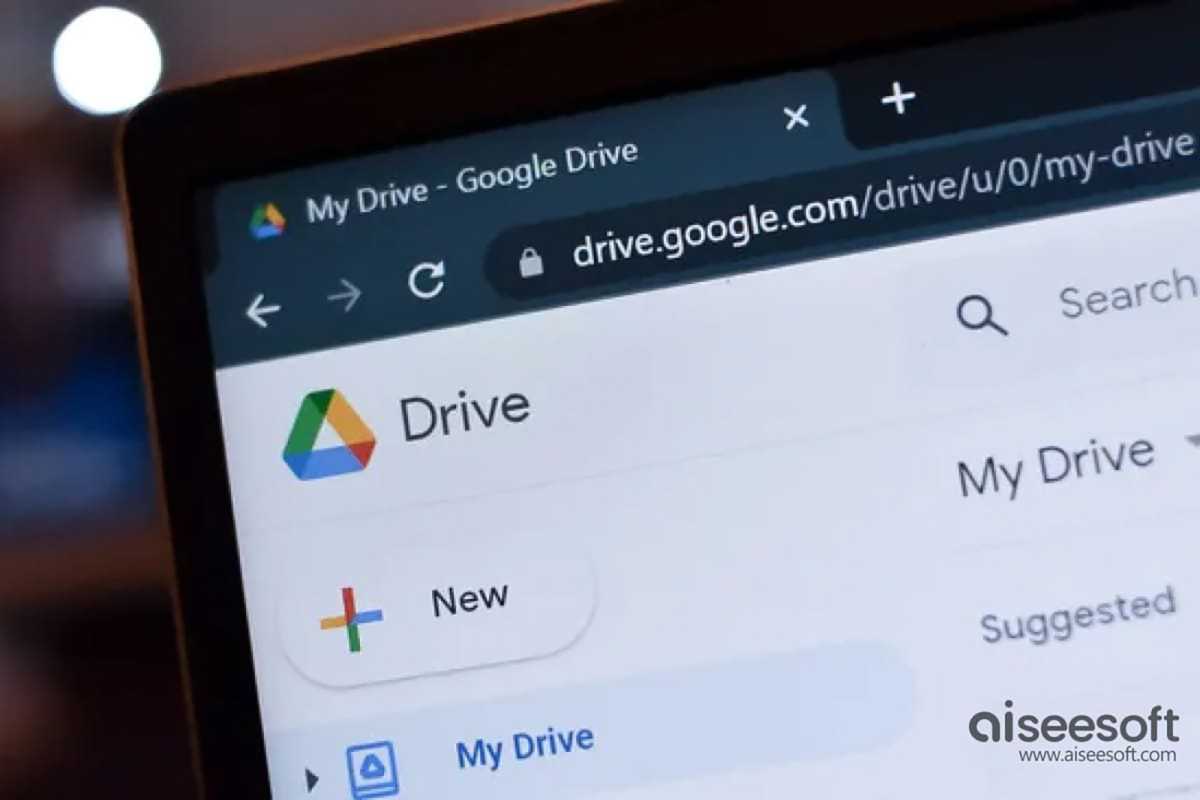
The only way to truly protect your data is to maintain backups. Back up locally, back up to the cloud, or both. But whatever you do, make regular backups so you aren’t caught off guard when your SSD fails.
One final ‘smart’ warning
Windows Update isn’t the main threat to your SSD. Firmware bugs, excessive heat, and write-related wear and tear are all problems you can avoid. Electrical issues and hardware failures are also possibilities. Keep on top of those and your SSD should last a while.
Note that some SSDs show a “health status” via something called a SMART early warning system, and you can view this using tools like your SSD manufacturer’s utility app or CrystalDiskInfo. But SMART isn’t foolproof. There’s no guarantee you’ll get an early warning when your SSD is on the brink of failure. An SSD could be showing “in good health” and still end up bricked and unbootable the next day.
Here’s the takeaway: a software bug probably won’t take out your SSD, and most SSD risks are things you can see coming and adequately protect yourself against. Ensure you’re using current stable firmware, keeping your drive cool, not filling it to the brim with data, and regularly backing up your files just in case. If you do all that, there’s a good chance your SSD will outlast most of your PC’s other components.
Subscribe to Chris Hoffman’s newsletter, The Windows Readme, for more real-world PC advice from a real human.
