






If you’ve downloaded macOS 26, the biggest visual change is the interface that brings a new look to menus and buttons. Apple is taking advantage of the Liquid Glass introduction to bring some new icon designs to the Mac as well to help give macOS a fresh look. It’s a polarizing look for sure, but far more jarring will be the new icons that come with it.
If you’re a veteran Mac user, some of the icons may throw you off because Apple made a drastic change. Other icons will be instantly recognizable–you may not even notice a difference unless you take a closer look. In many cases, the icons are simpler and have less character than they did before.
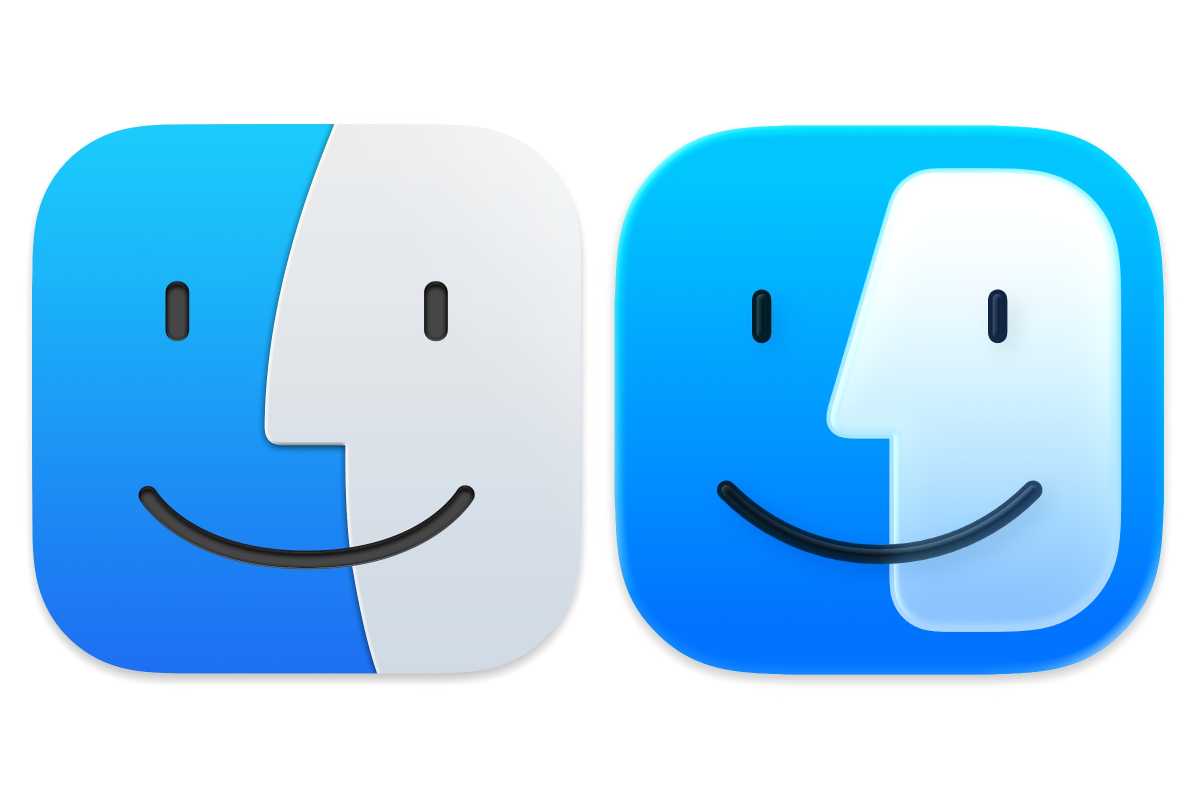
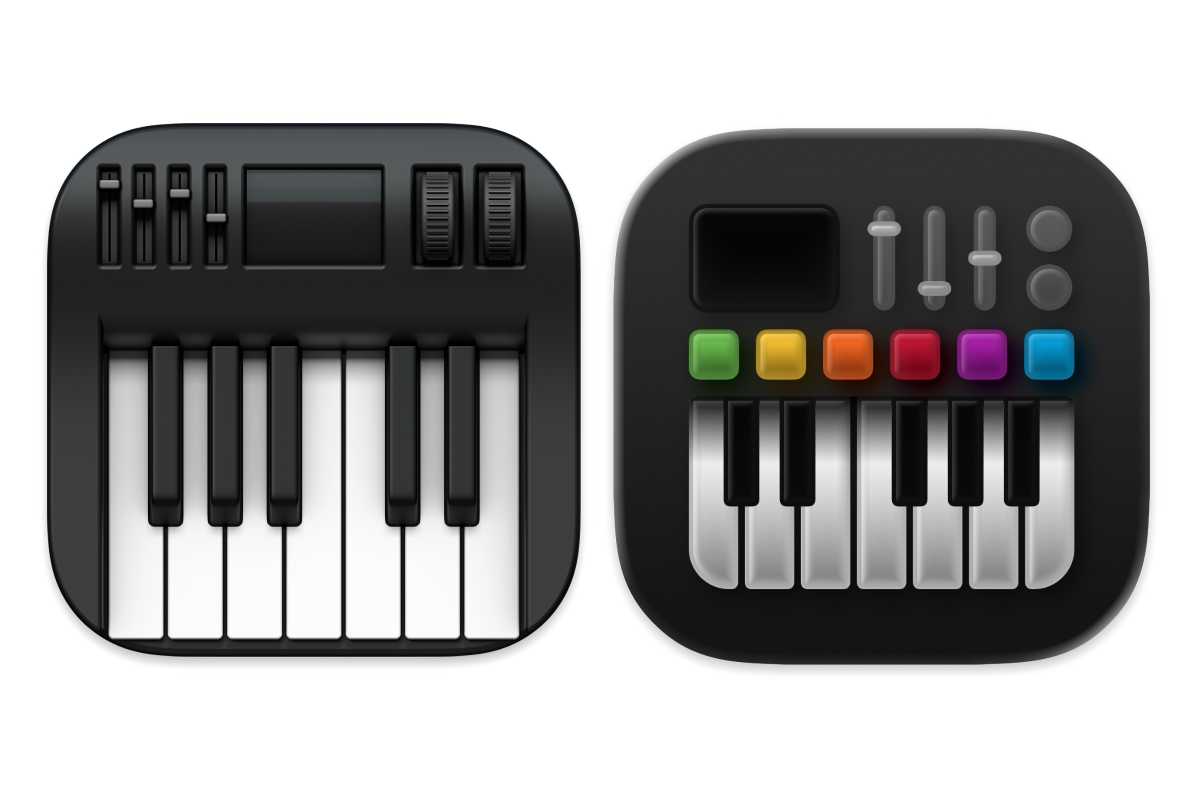
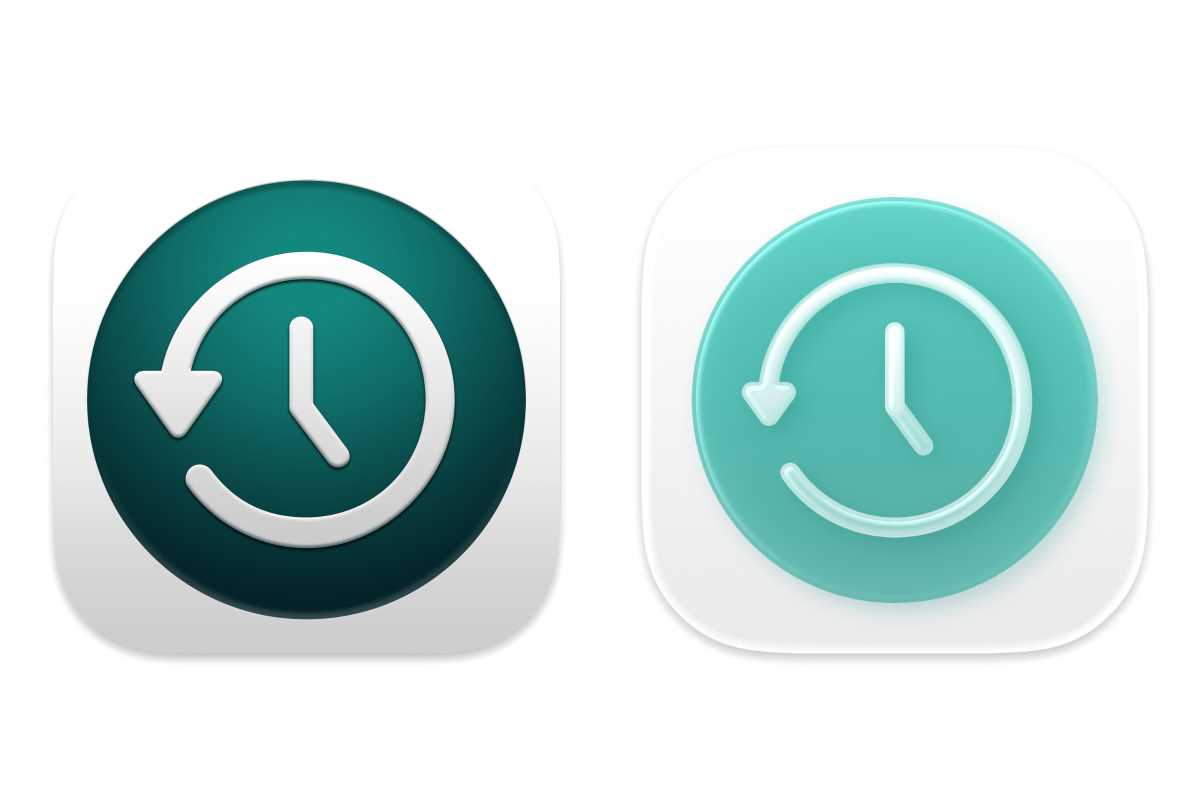
Here are 21 examples of Apple apps that have new icons. In all of the images below, the icon on the left is from macOS Sequoia and the icon on the right is from the macOS Tahoe beta.
Finder

Apple
Audio MIDI Setup
Apple
Automator

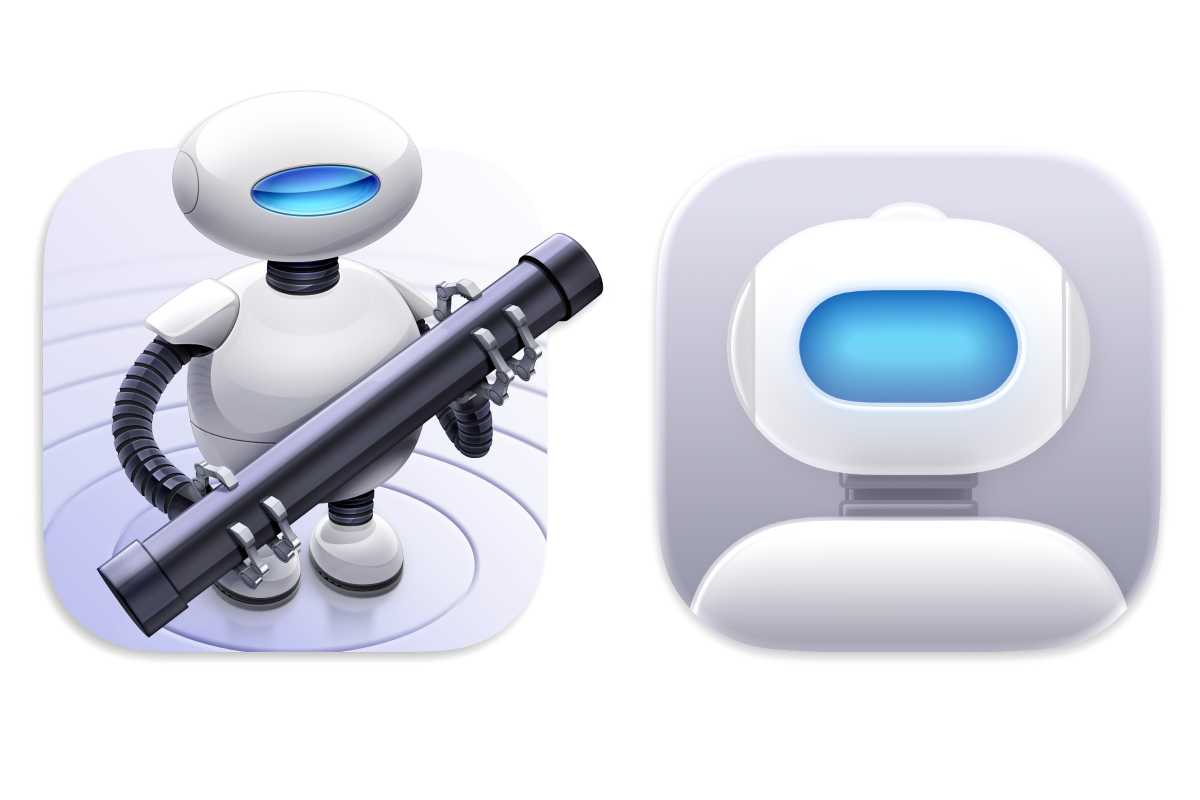
Automator: macOS Sequoia (left) and macOS Tahoe (right).
Apple
Calendar
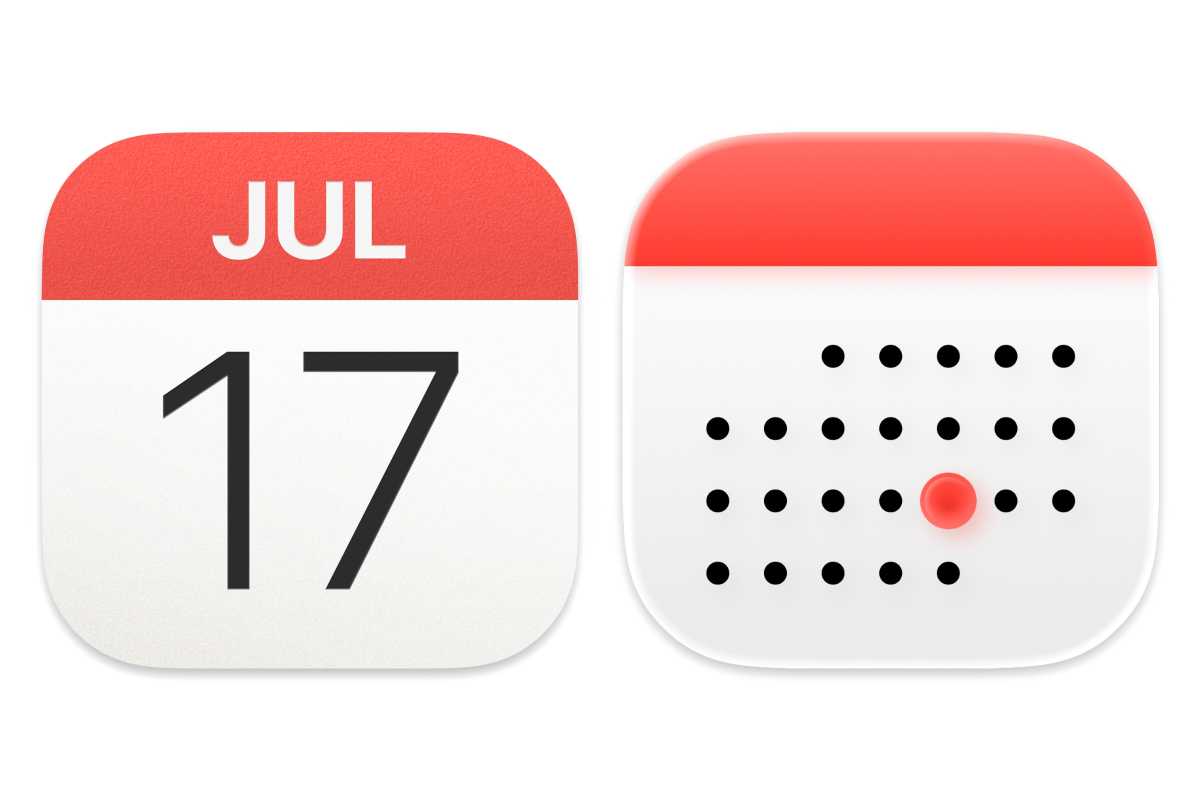
Calendar: macOS Sequoia (left) and macOS Tahoe (right).
Apple
Chess
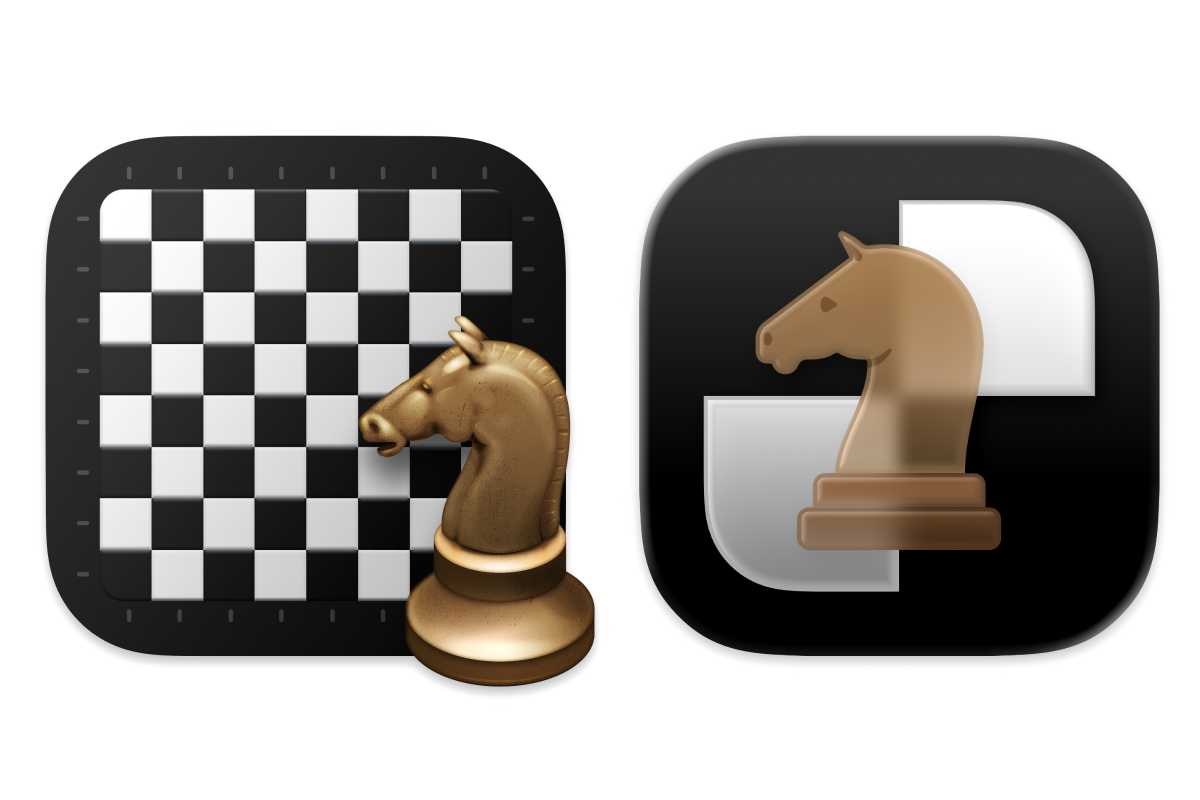
Chess: macOS Sequoia (left) and macOS Tahoe (right).
Apple
Clock
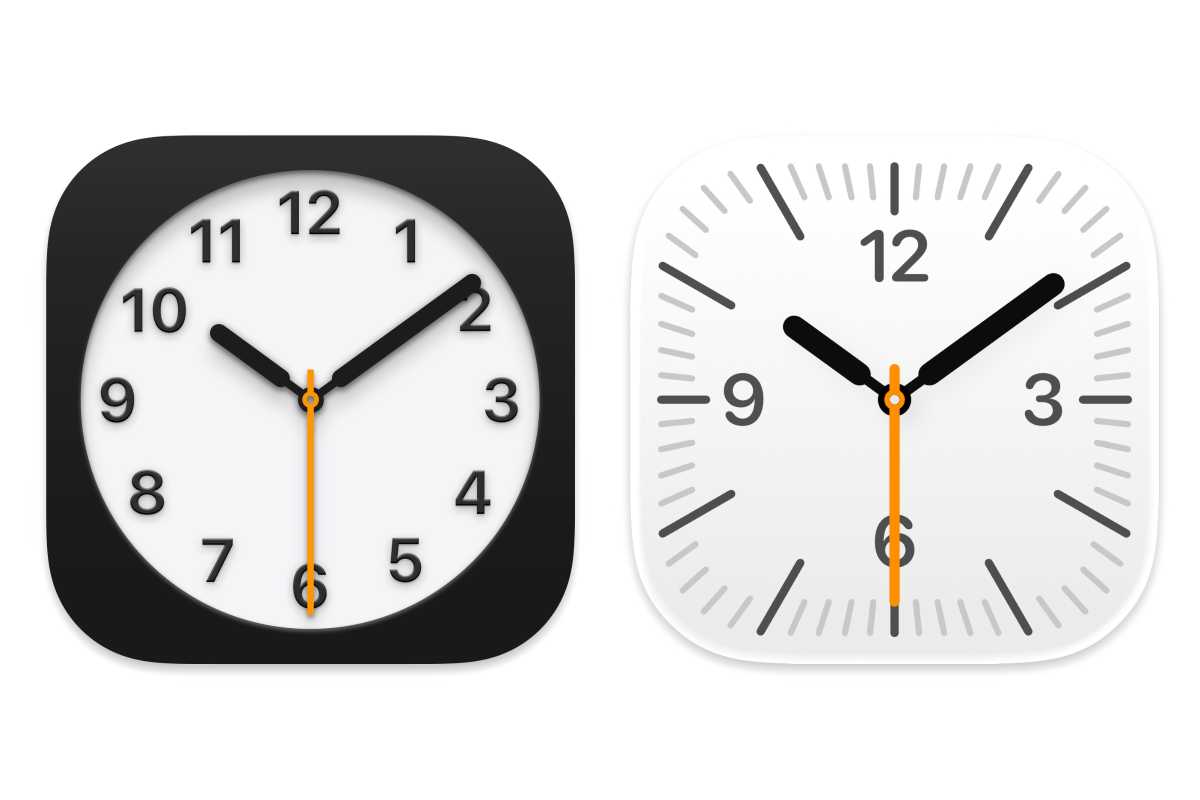
Clock: macOS Sequoia (left) and macOS Tahoe (right).
Apple
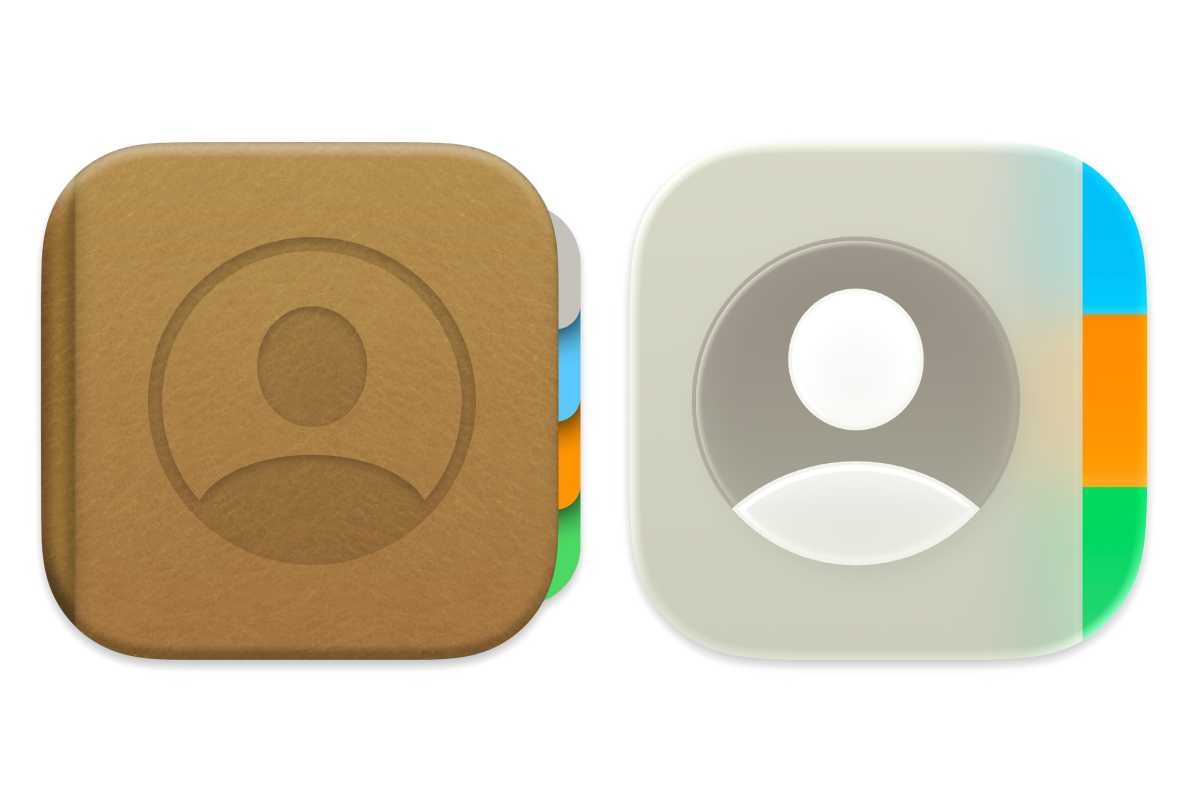
Contacts: macOS Sequoia (left) and macOS Tahoe (right).
Apple
Digital Color Meter
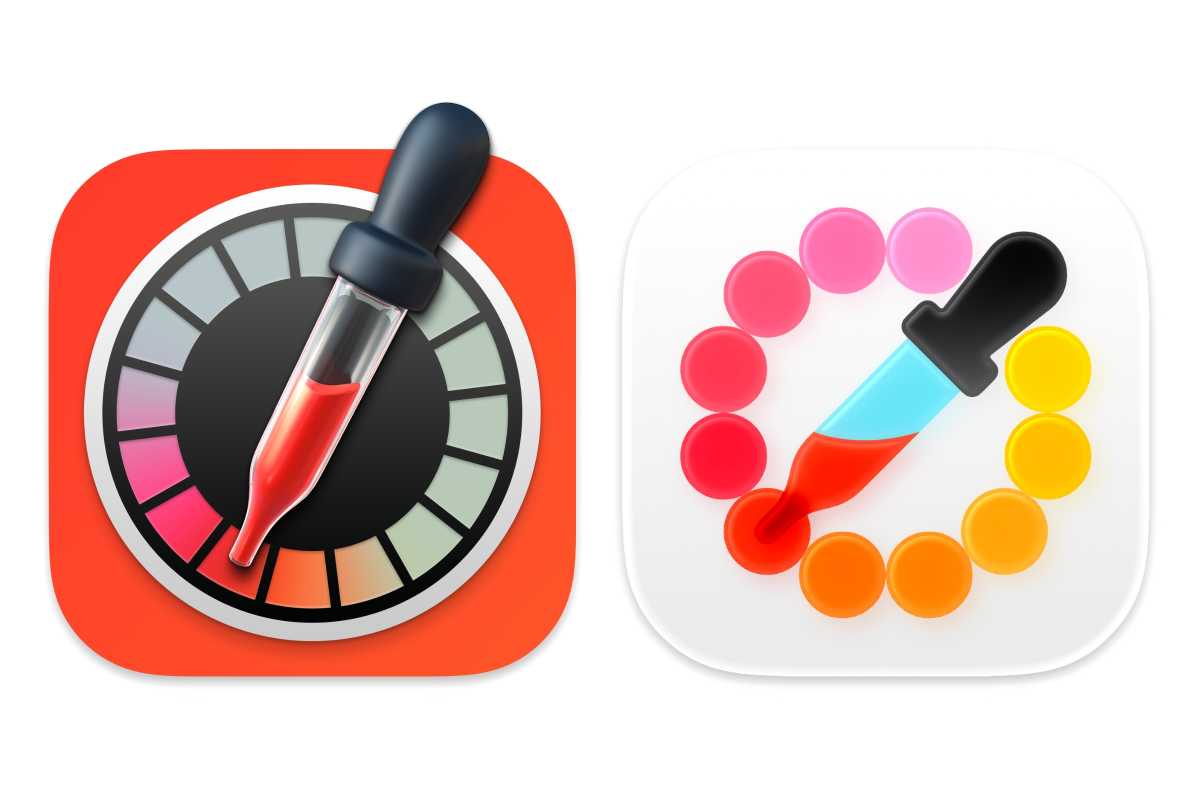
Digital Color Meter: macOS Sequoia (left) and macOS Tahoe (right).
Apple
Disk Utility
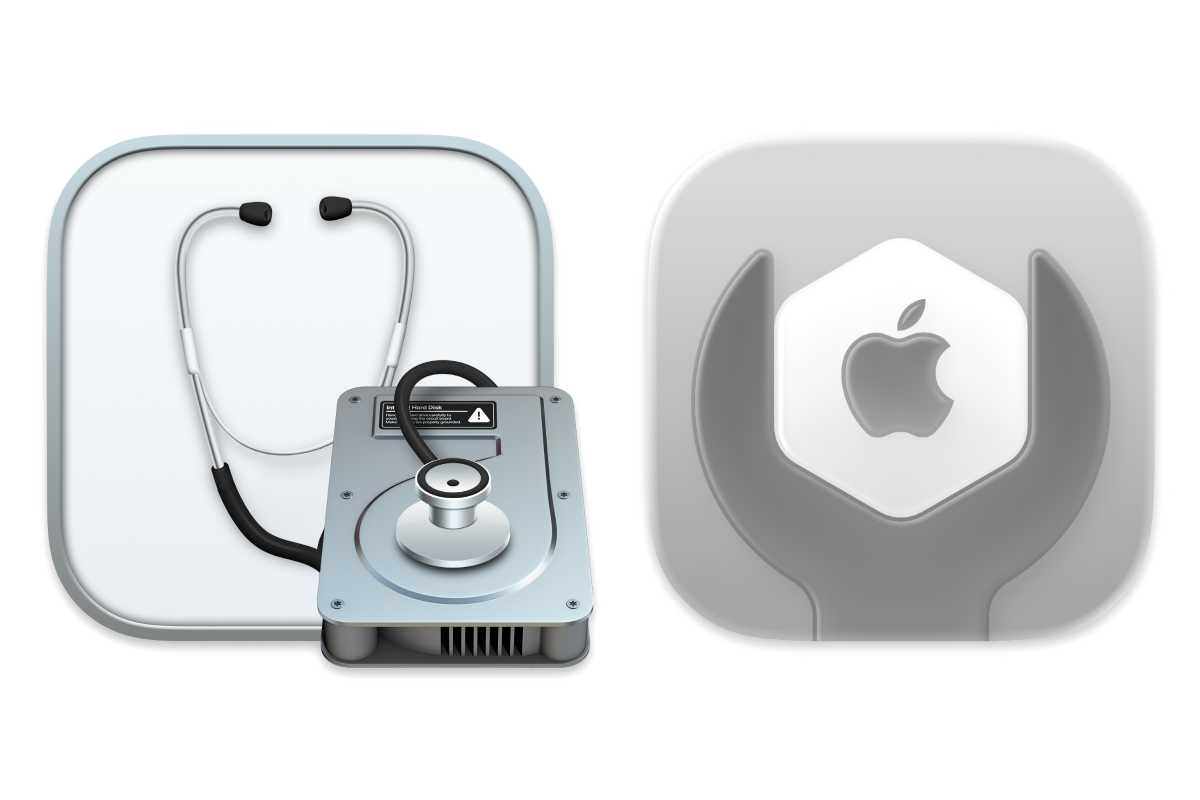
Disk Utility: macOS Sequoia (left) and macOS Tahoe (right).
Apple
Font Book
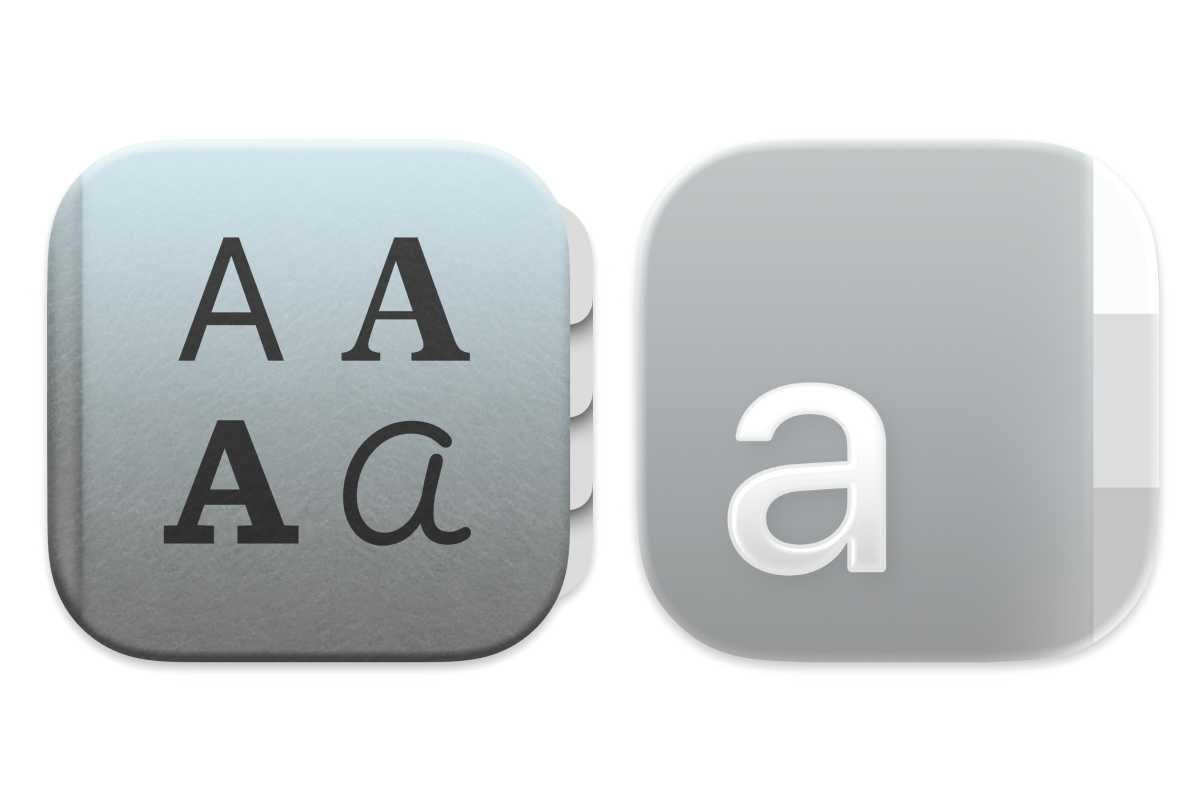
Font Book: macOS Sequoia (left) and macOS Tahoe (right).
Apple
iPhone Mirroring
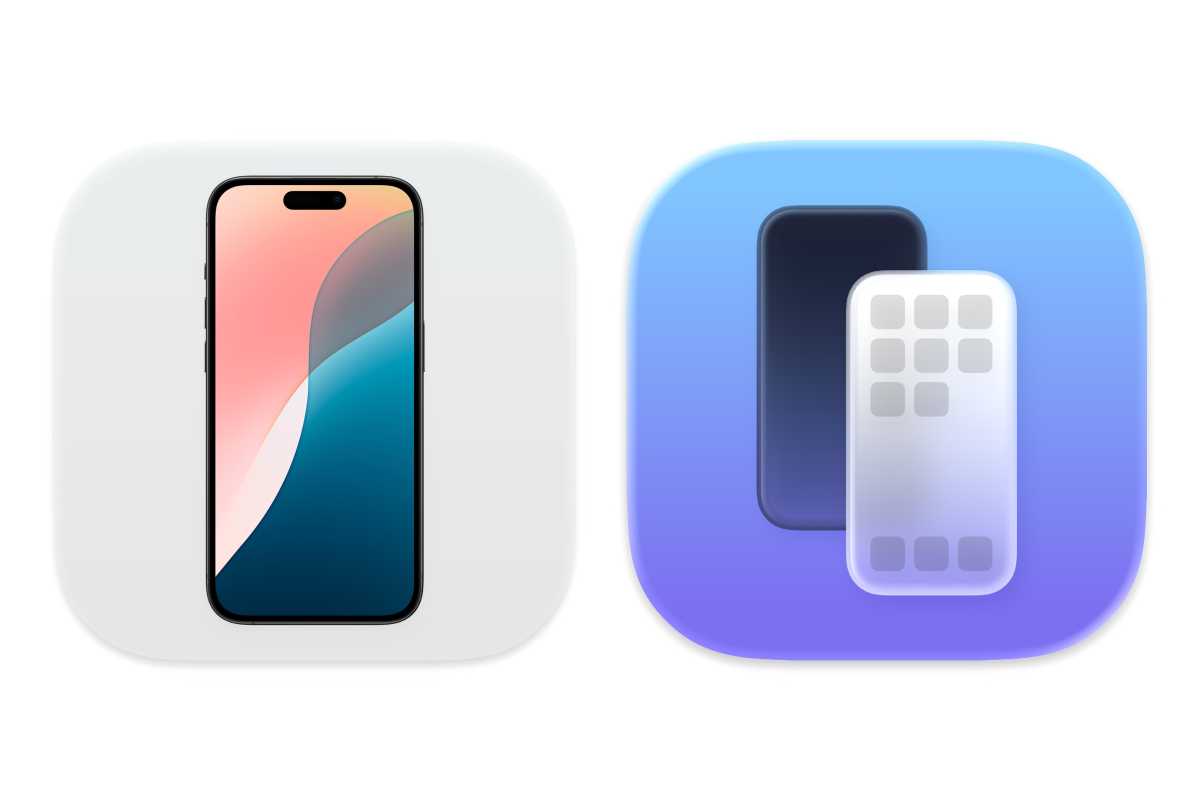
Apple
Macintosh HD
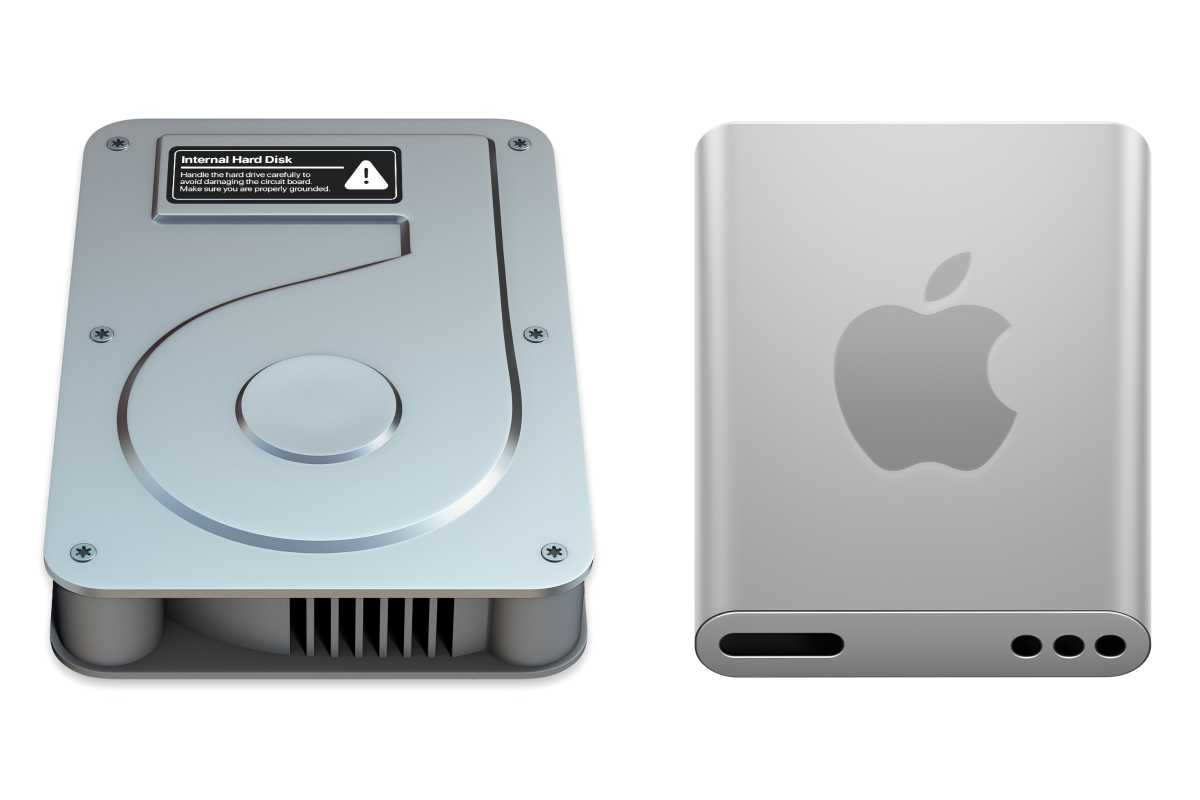
Macintosh HD: macOS Sequoia (left) and macOS Tahoe (right).
Apple
Migration Assistant
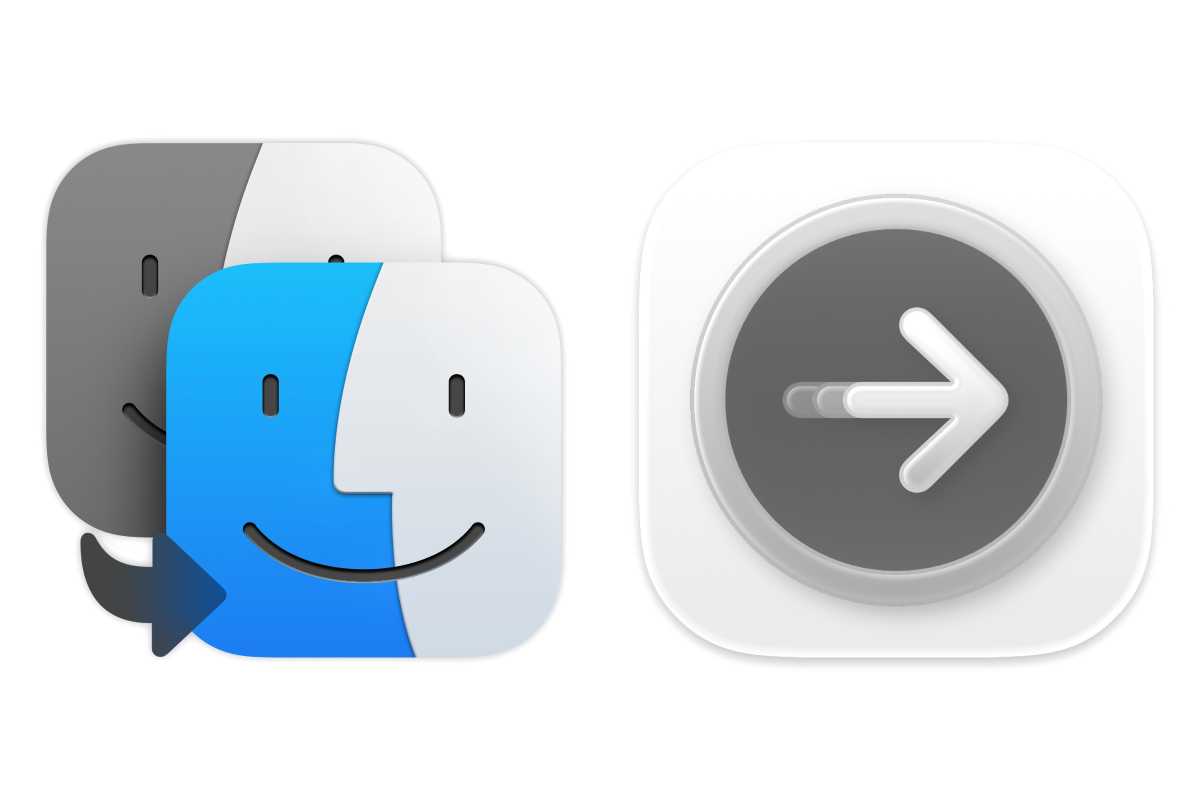
Migration Assistant: macOS Sequoia (left) and macOS Tahoe (right).
Apple
Photo Booth
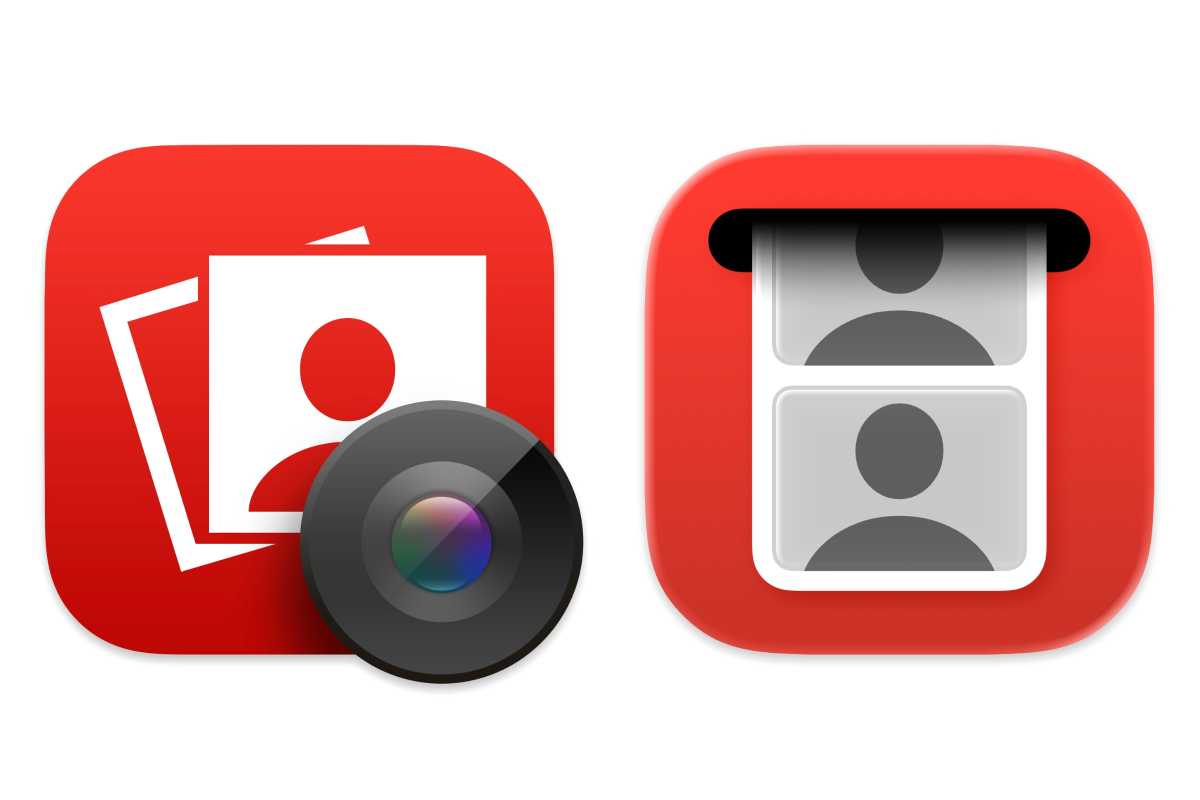
Photo Booth: macOS Sequoia (left) and macOS Tahoe (right).
Apple
Preview
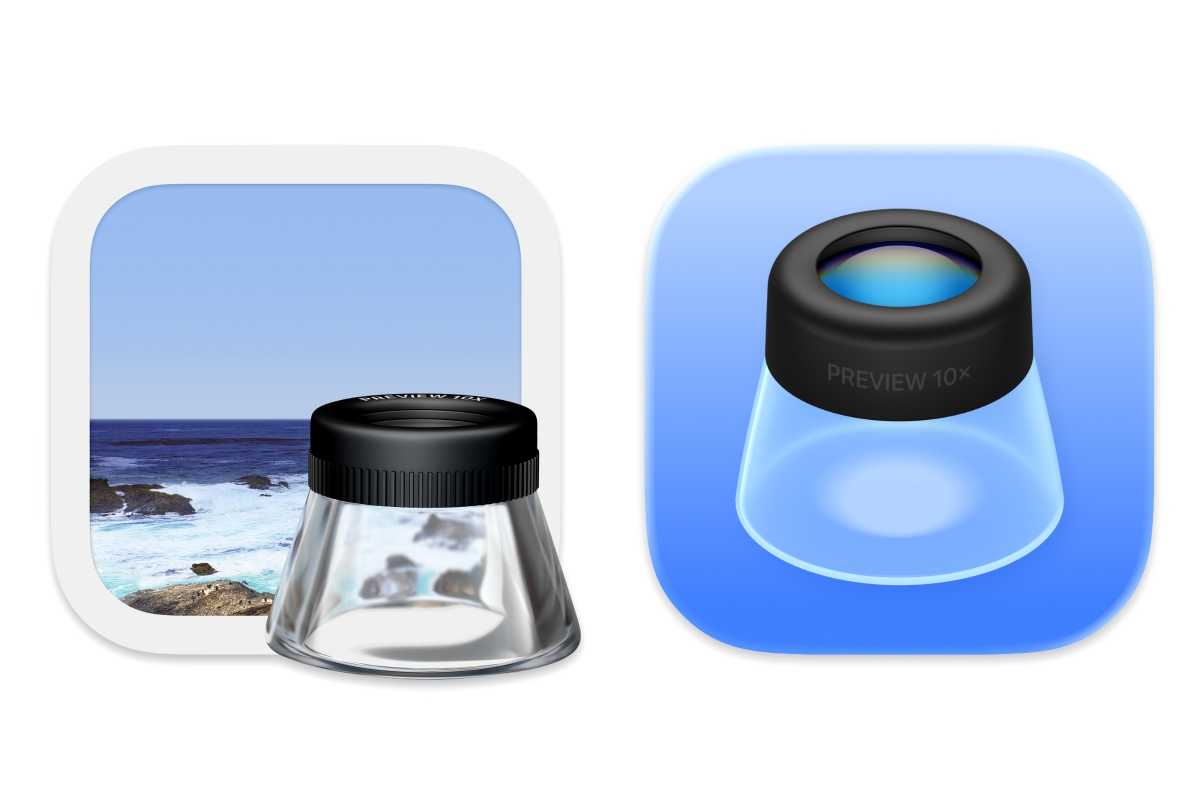
Apple
Screen Sharing
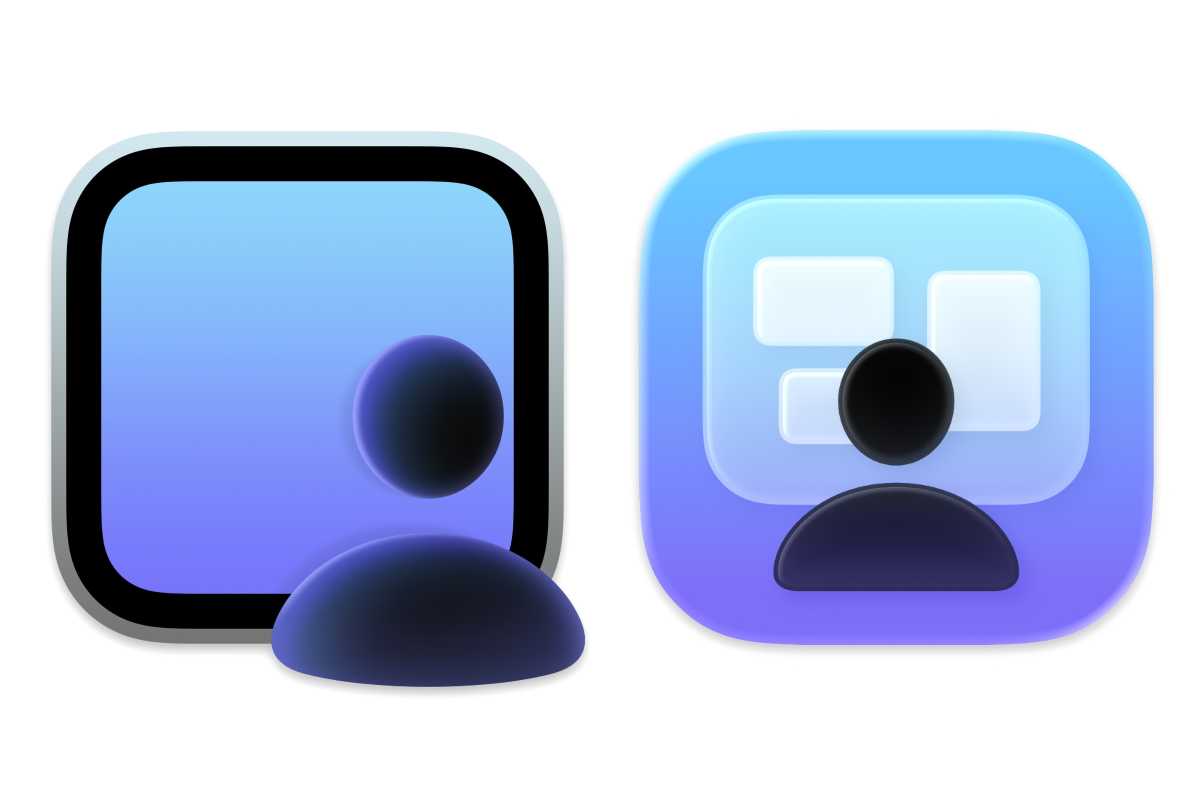
Screen Sharing: macOS Sequoia (left) and macOS Tahoe (right).
Apple
Screenshot
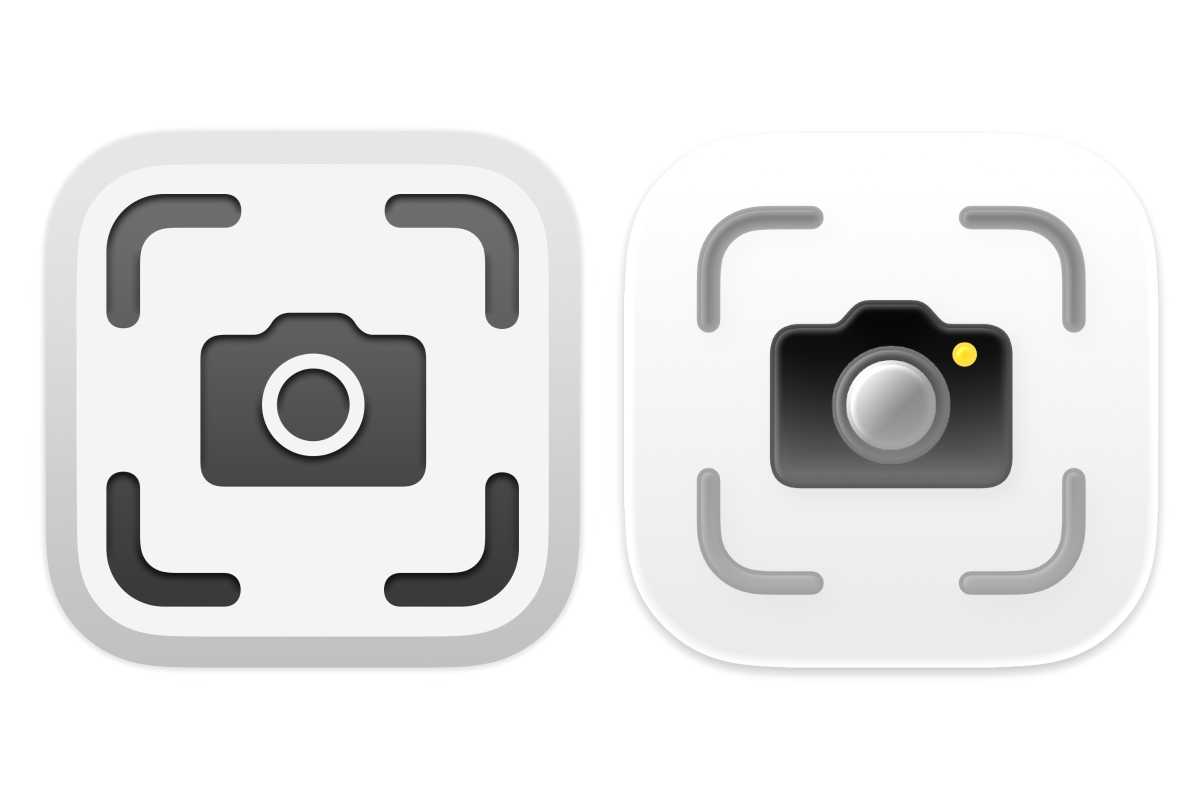
Screenshot: macOS Sequoia (left) and macOS Tahoe (right).
Apple
Stickies
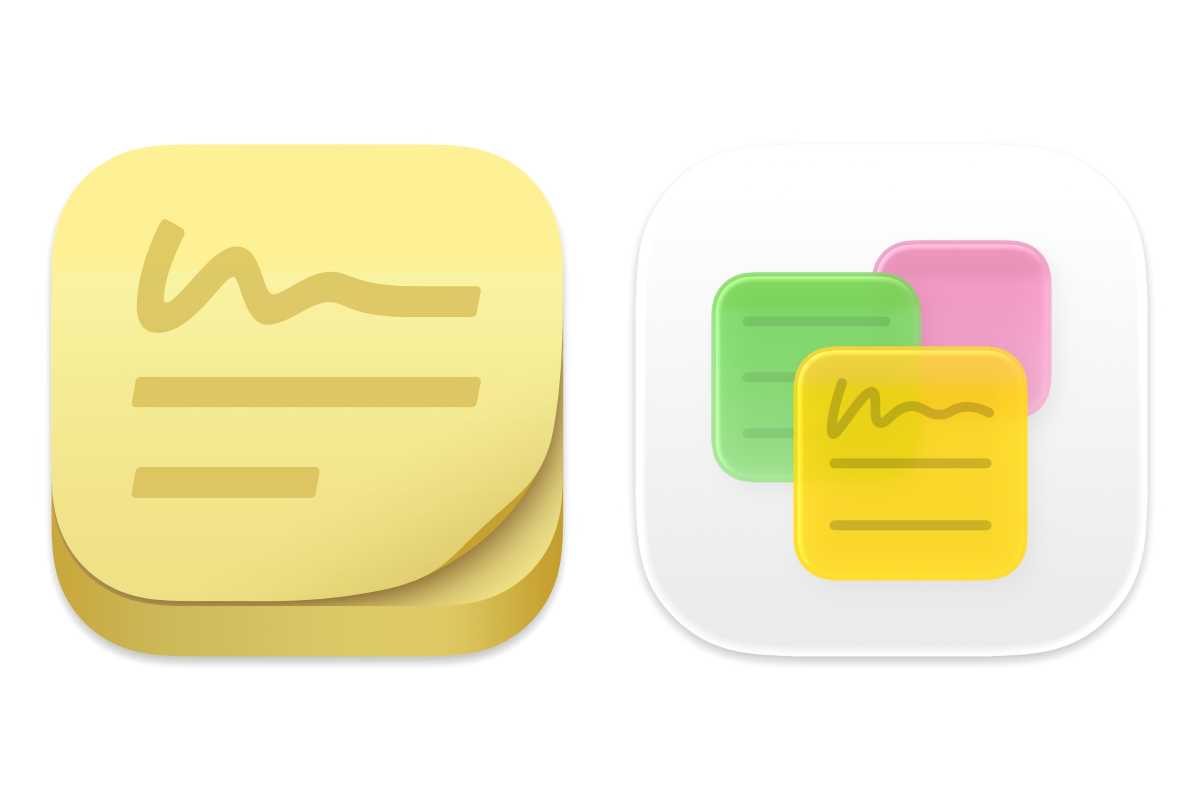
Apple
Terminal
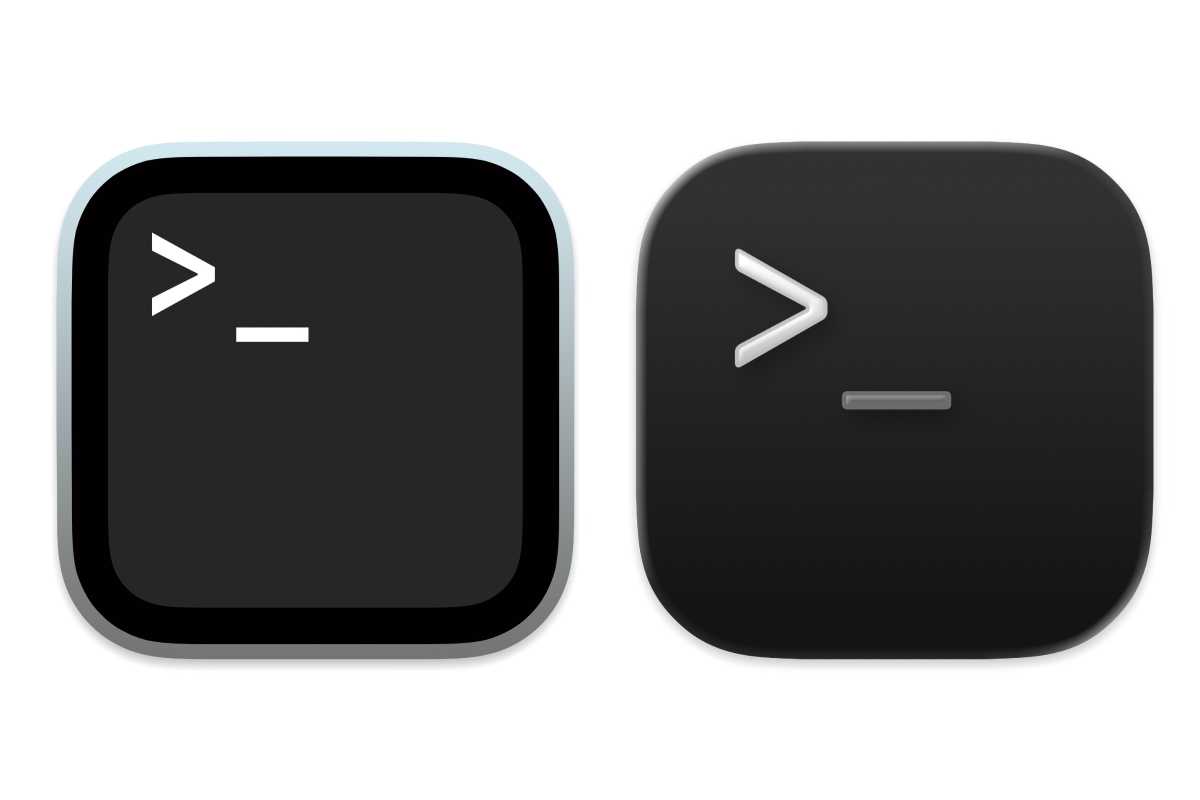
Apple
Text Edit
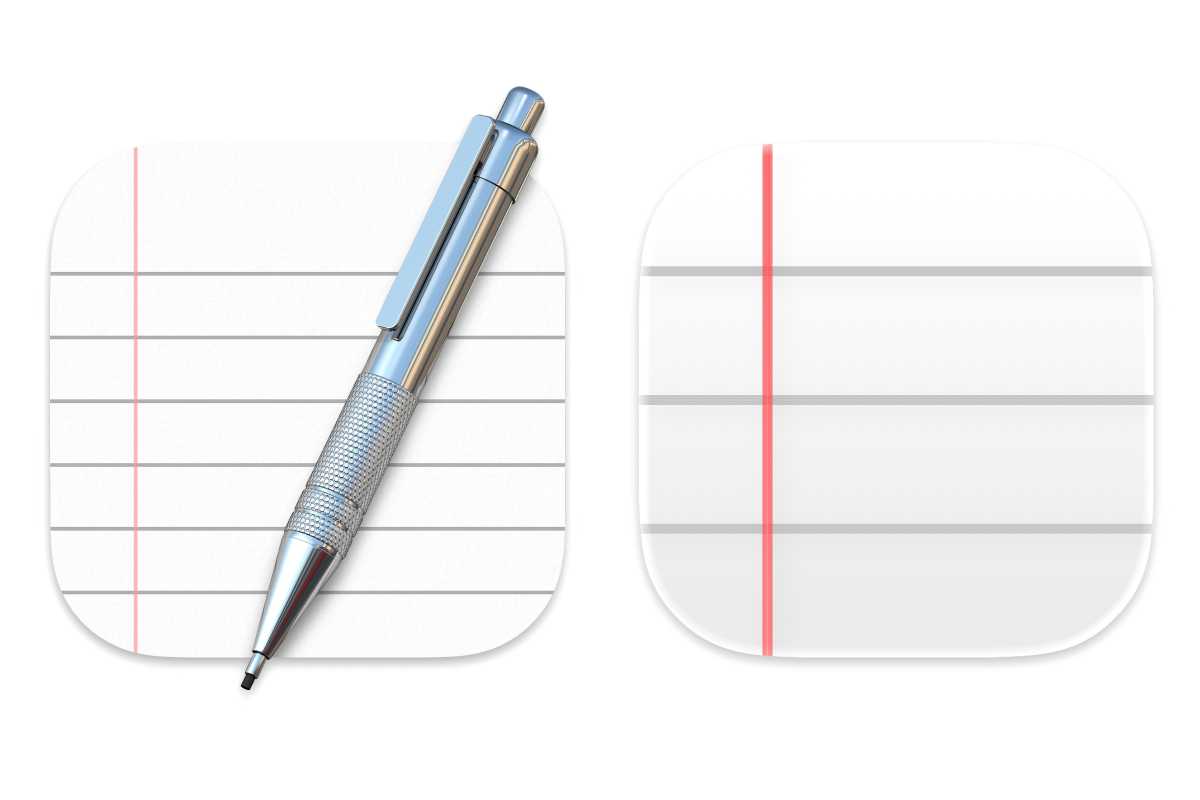
Apple
Time Machine
Apple
Learn more in our macOS Tahoe superguide.


