Close Menu

    Subscribe to Updates

    Get the latest creative news from FooBar about art, design and business.

    What's Hot

    Tennessee redistricting plan splits Memphis neighbors and reshapes midterms as other states follow

    Operators of critical services in Singapore must urgently raise defences amid AI threats: Shanmugam

    Denon Home series speakers review: Siri & superior sound

    Facebook X (Twitter) Instagram
    Facebook X (Twitter) Instagram Pinterest VKontakte
    Sg Latest NewsSg Latest News
    • Home
    • Politics
    • Business
    • Technology
    • Entertainment
    • Health
    • Sports
    Sg Latest NewsSg Latest News
    Home»Technology»How to tone down Liquid Glass in macOS Tahoe
    Technology

    How to tone down Liquid Glass in macOS Tahoe

    AdminBy AdminNo Comments2 Mins Read
    Facebook Twitter Pinterest LinkedIn Tumblr Email
    Share
    Facebook Twitter LinkedIn Pinterest Email


    With macOS Tahoe, Apple is introducing a new Liquid Glass look for the user interface. This new look involves transparent elements where some sections on screen will be able to show elements layered below them. It gives macOS a fresh, new look. (Or makes it look a little like Windows Vista, if you’ve been using computers long enough to understand that reference.)

    If you don’t like the new transparent look or if it affects how well you can see items, there is a way to reduce it, and in some instances, turn it off. Here’s how to reduce transparency in macOS Tahoe.

    How to reduce transparency in macOS Tahoe

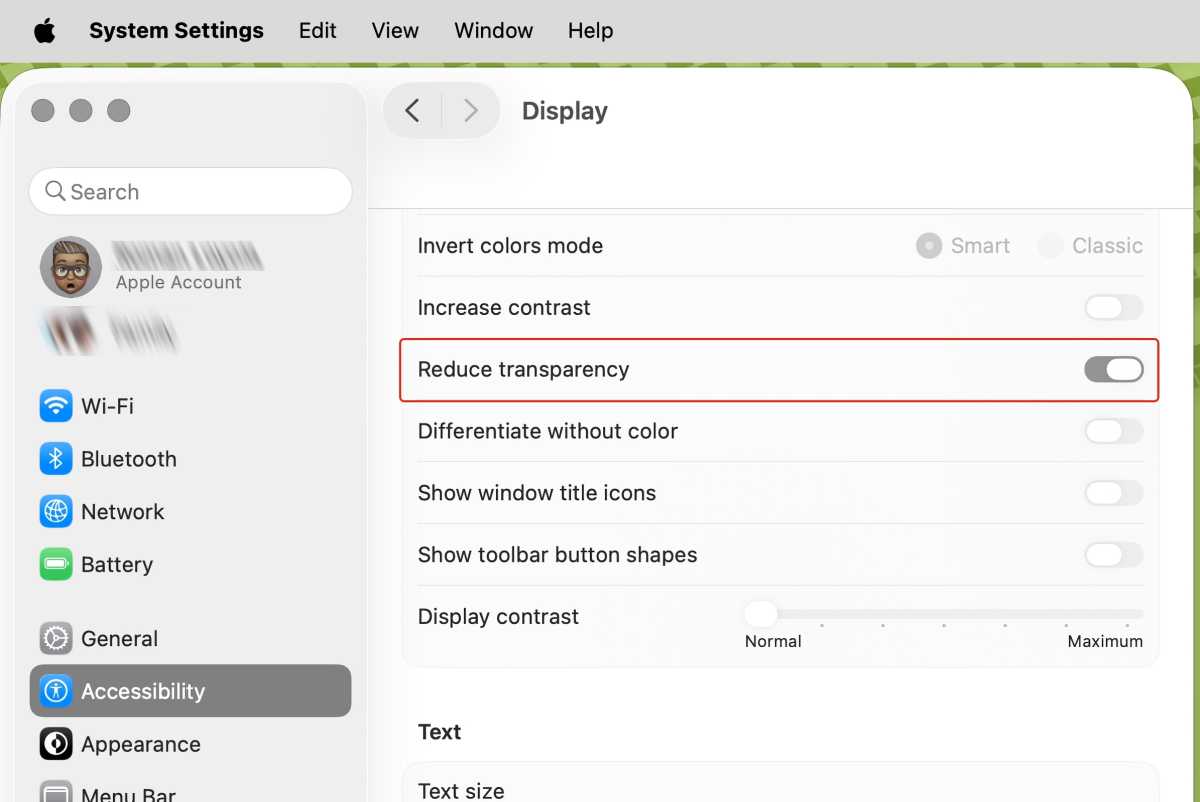
    1. In System Settings, go to Accessibility in the left column.
    2. In the main area of the window, look for the Vision section. Select Display.
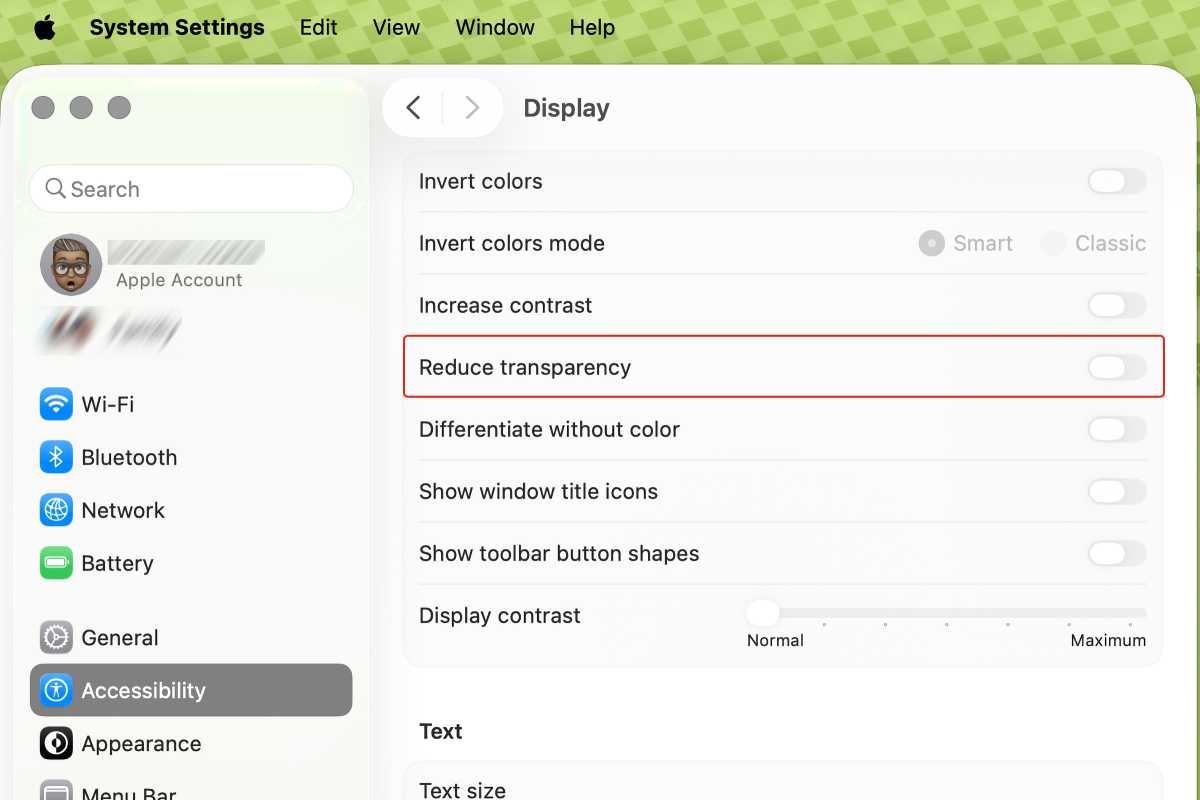
    3. Look for the Reduce transparency setting. The default for the switch is off. Flip the switch on to activate this setting.

    Note that, for whatever reason, Apple decided to make the setting switches very dim in macOS Tahoe. Longtime Mac users know that often, settings that cannot be adjusted are dimmed like this. But in Tahoe, these settings are active, and you can tweak them.

    This isn’t a new setting, but it’s far more useful in macOS Tahoe due to the Liquid Glass effect. To give you an idea of how this setting works, here are images of how it affects the menu bar.

    Before: Default transparency
    tahoe reduce transparancy off

    Foundry

    After: Reduce transparency

    tahoe reduce transparancy on

    Foundry

    Learn more about Apple’s next Mac operating system in our macOS Tahoe superguide. If you’re interested in installing the Tahoe Public Beta before the official release this fall, here’s how to get the macOS Tahoe Public Beta.

    Share. Facebook Twitter Pinterest LinkedIn Tumblr Email
    Admin
    • Website

    Related Posts

    Denon Home series speakers review: Siri & superior sound

    Google settles racial discrimination lawsuit for $50 million

    Access Denied

    More people are using AI for retirement planning, but how accurate is it? Here’s what experts say.

    Add A Comment
    Leave A Reply Cancel Reply

    Editors Picks

    Electrical fire to keep theater that hosts ‘The Book of Mormon’ closed through May 17

    The 2026 Grammy Award nominations are about be announced. Here’s what to know

    Disease of 1,000 faces shows how science is tackling immunity’s dark side

    Judge reverses Trump administration’s cuts of billions of dollars to Harvard University

    Top Reviews
    9.1

    Review: Mi 10 Mobile with Qualcomm Snapdragon 870 Mobile Platform

    By Admin
    8.9

    Comparison of Mobile Phone Providers: 4G Connectivity & Speed

    By Admin
    8.9

    Which LED Lights for Nail Salon Safe? Comparison of Major Brands

    By Admin
    Sg Latest News
    Facebook X (Twitter) Instagram Pinterest Vimeo YouTube
    • Get In Touch
    © 2026 SglatestNews. All rights reserved.

    Type above and press Enter to search. Press Esc to cancel.