


On paper, face swapping is no longer a technical challenge. The underlying AI has matured quickly, and results have improved across the board. But for Mac users, the experience of actually using these tools hasn’t always kept pace.
Yet Mac users have historically faced a familiar problem: many AI-powered tools either prioritize Windows ecosystems or rely heavily on cloud workflows that compromise speed, privacy, or quality. That’s where newer platforms like VidMage aim to shift the balance, offering a more optimized experience for Mac users seeking reliable, high-quality face-swap solutions.
But how does a tool like this actually fit into the broader landscape of AI media editing? And, more importantly, does it meet the expectations of Mac users accustomed to refined, performance-conscious software?
Let’s break it down.
The Growing Demand for Face Swap on Mac
Search interest in “face swap for Mac” has grown steadily over the past two years, driven by three observable shifts in content creation:
- The dominance of short-form video platforms (TikTok, Instagram Reels, YouTube Shorts)
- Wider accessibility of AI‑generated content tools
- A creator economy that increasingly values speed and differentiation
However, for macOS users, most face‑swap solutions come with friction:
- Open‑source tools often require manual setup—Python environments, dependency management, and GPU configuration.
- Browser‑based services struggle with large video files and impose upload limits.
- Professional editing suites like Final Cut Pro and Premiere Pro lack built‑in AI face‑swap features.
The result is a clear gap between what users want—fast, clean, realistic face swaps—and what existing tools actually deliver on Mac. VidMage positions itself directly within that gap.
A Mac‑First Approach to AI Face Swapping
VidMage
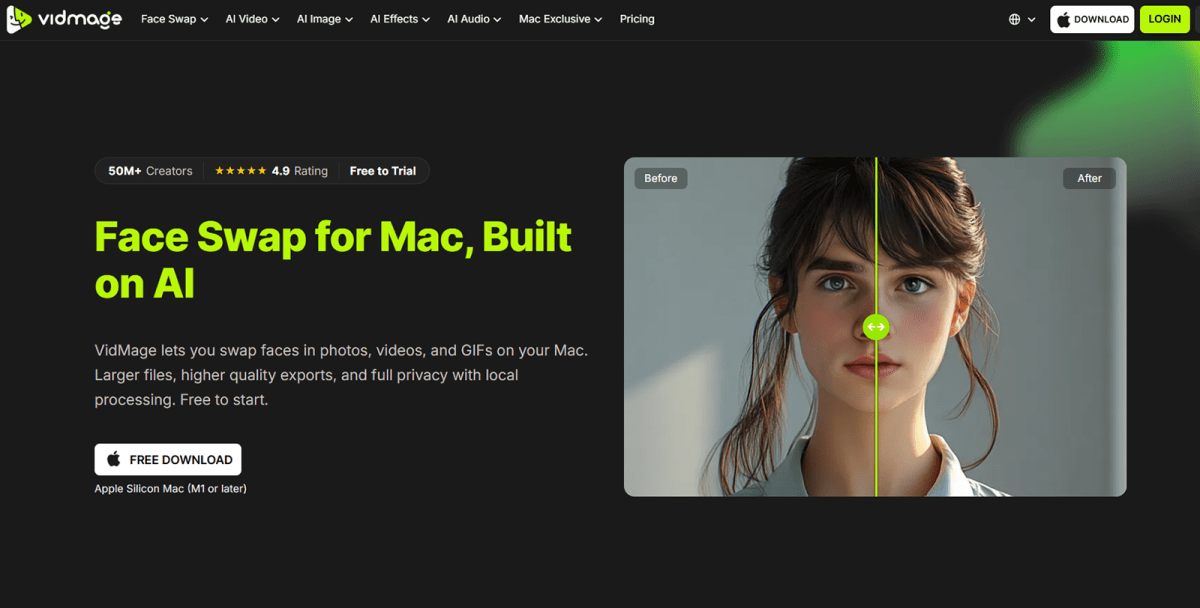
Where many AI tools treat macOS as an afterthought, VidMage adopts a workflow clearly optimized for Mac users. It runs natively on Apple Silicon (M1 or later) and processes all files locally—no internet connection required, no file size limits, and no uploads to external servers. The tool supports batch processing for multiple files, 4K export resolution, and automatic face detection and enhancement.
Core capabilities:
- Face swap in videos, photos, and GIFs
- Local processing (files never leave the device)
- No file size or upload restrictions
- Batch processing for multiple files
- 4K export support
- Automatic face detection and enhancement
Instead of requiring command‑line input, GPU tuning, or third‑party libraries, VidMage streamlines the process into a four‑step pipeline:
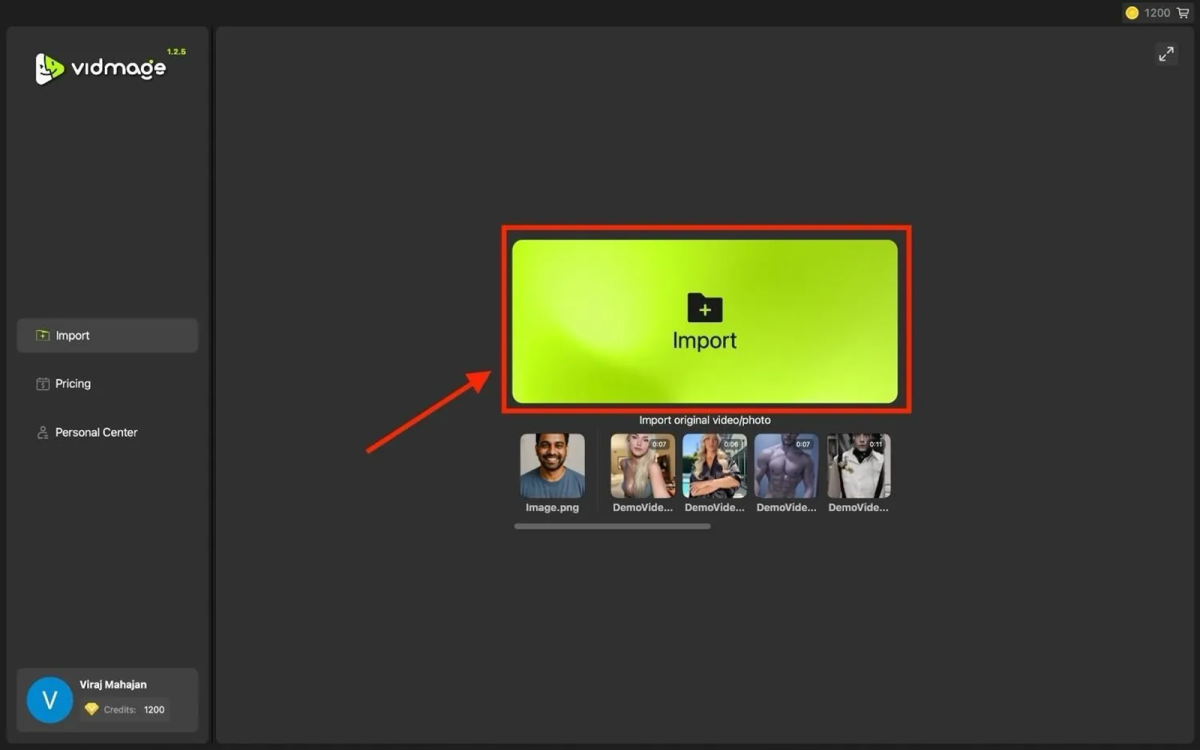
Step 1: Import source media. Open the VidMage Mac app and import the video, photo, or GIF to be edited. The tool supports all common media formats and, because processing happens locally, imposes no file size caps.
VidMage
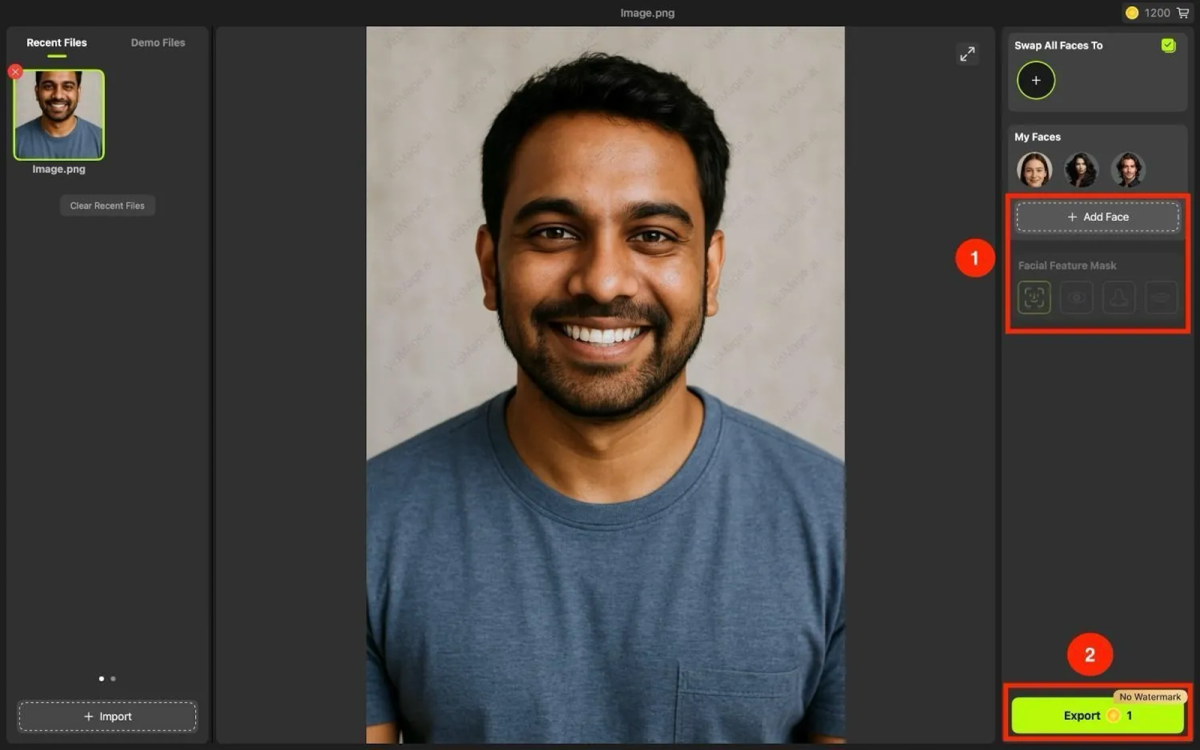
Step 2: Add the target face image. Upload a clear, well‑lit photo of the face to swap in (JPG or PNG recommended). For best results, the source face image should have good lighting and a fully visible face.
VidMage
Step 3. Choose the facial feature mask to swap only the lips, mouth, or nose.
Step 4. Export with minimal manual adjustment
This workflow mirrors what Mac users expect from tools like iMovie or Pixelmator: focused, efficient, and visually guided. The software does not require a native Apple Silicon build to feel at home on macOS—though performance benefits are noticeable on M‑series chips.
Evaluating Output Quality: Alignment, Lighting, and Motion
Face‑swap tools typically fall into two camps:
- Quick but low‑quality: obvious artifacts, poor edge blending, and inconsistent lighting.
- High‑quality but technically demanding: requiring model training, manual keyframing, or GPU clusters.
VidMage attempts to bridge that divide by prioritizing output realism without demanding technical expertise. In practice, that translates into three areas:
Facial Alignment Precision
The AI model emphasizes consistent facial structure mapping, reducing common issues such as misaligned eyes, warped proportions, or unnatural expressions.
Lighting & Skin Tone Adaptation
Mismatched lighting is one of the quickest giveaways in face‑swap content. VidMage’s processing adjusts tone and exposure to better match the target scene—particularly noticeable in video outputs where lighting changes across frames.
Motion Consistency in Video
For video swaps, frame‑to‑frame temporal consistency is critical. Many tools break down here, producing flicker or distortion. VidMage reduces these artifacts, delivering smoother results suitable for social media and light professional use.
The outcome is not Hollywood‑grade VFX, but it is a clear step above novelty filters.
Conclusion
That’s the complete how‑to for face swap on macOS using VidMage. No terminal, no cloud uploads, no file size anxiety. Just a local Mac app, a few clicks, and a swapped face that never leaves your drive.
The key takeaways are simple: use well‑lit, front‑facing source footage for best results; keep low‑light or fast‑motion clips under 15 seconds per render; and remember that the free tier caps at roughly 20‑30 seconds of video daily. If you need longer clips, batch processing, or 4K export, the paid plan removes those limits.
For Mac users who value privacy over convenience‑at‑any‑cost, this workflow offers a rare combination: local processing without the usual open‑source setup headaches. Now go test it with your own footage—you’ll see exactly where it shines and where a quick lighting fix makes all the difference.
