



For the longest time, Mac folder personalization was primarily limited to adding a name, tag, and custom icon. While you could tweak the look further through unofficial means, the default methods were quite restrained.
With macOS Tahoe, that’s all finally changed. You can now easily add symbols or emojis, change the folder’s color, set a default look, and much more. Customize your folders to help organize your Mac, or to add a little bit of your personal style. Here’s how.
Pick a color or tag for your folder
If you’re a Mac user, you’re likely already familiar with tags in the Finder app. Tags let you organize files and folders based on criteria of your choosing. Each tag can have its own name and color, making it easy to identify the nature of a certain item or locate it.
Traditionally, tags would add a colored dot next to the associated folder’s name. Starting with macOS Tahoe, tags also change the folder’s color. For example, if you’ve picked the color red for a certain tag, a tagged folder will become red as well. To create and assign tags to folders, follow these steps:
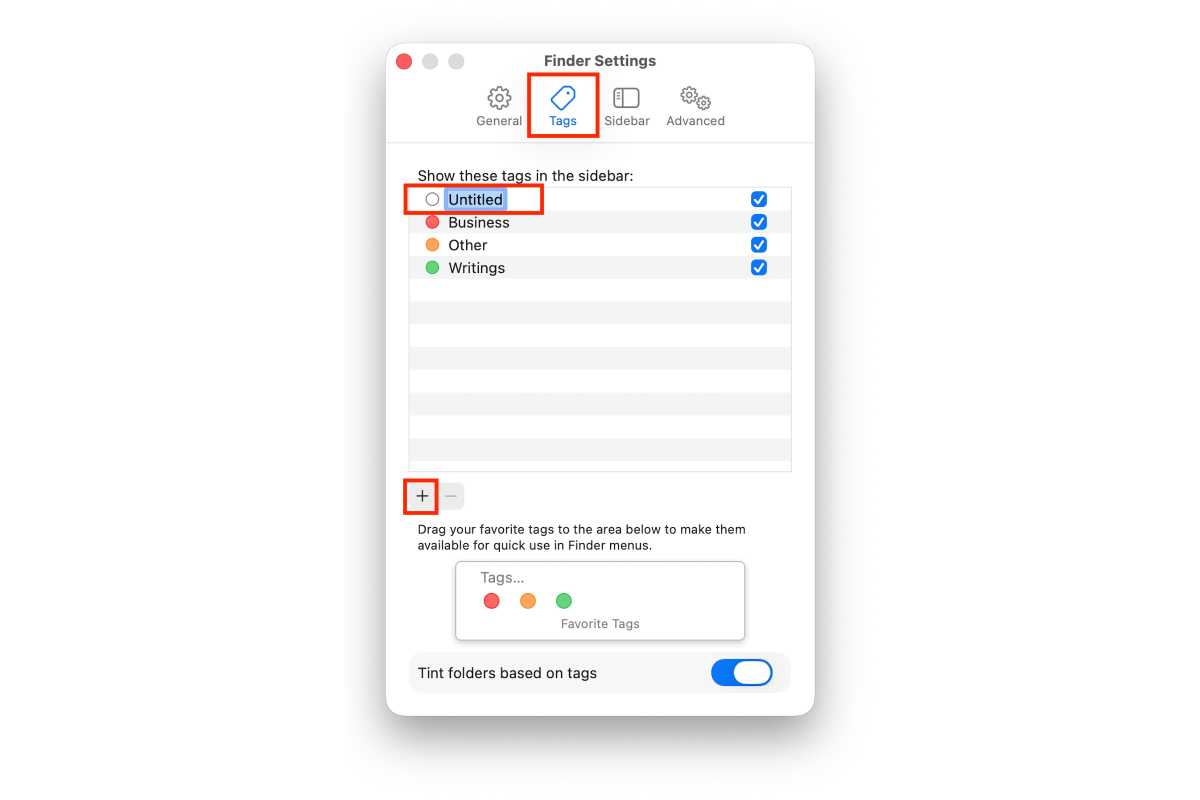
- In the Finder go to the Tags section in Finder > Settings.
- Tap on the plus symbol (+).
- Pick a name and color for your newly created tag.
Foundry
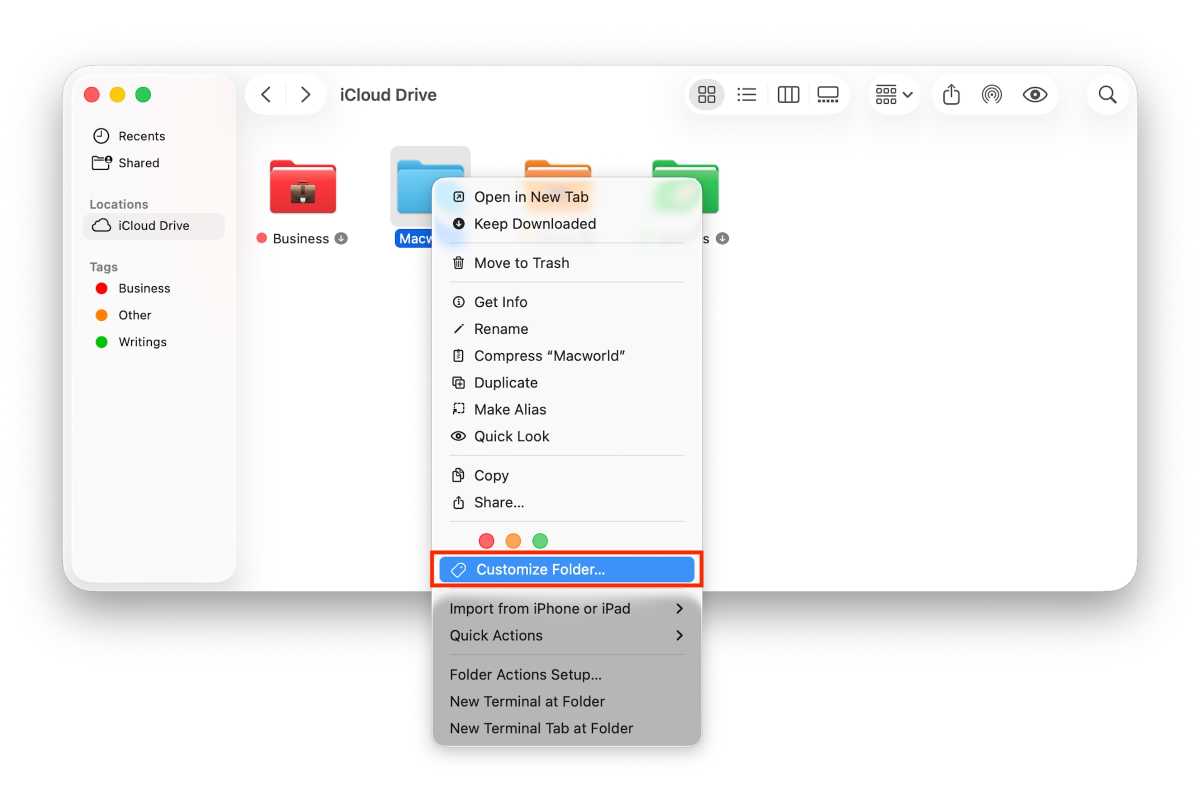
- In the Finder, right-click the desired folder and select Customize Folder.
Foundry
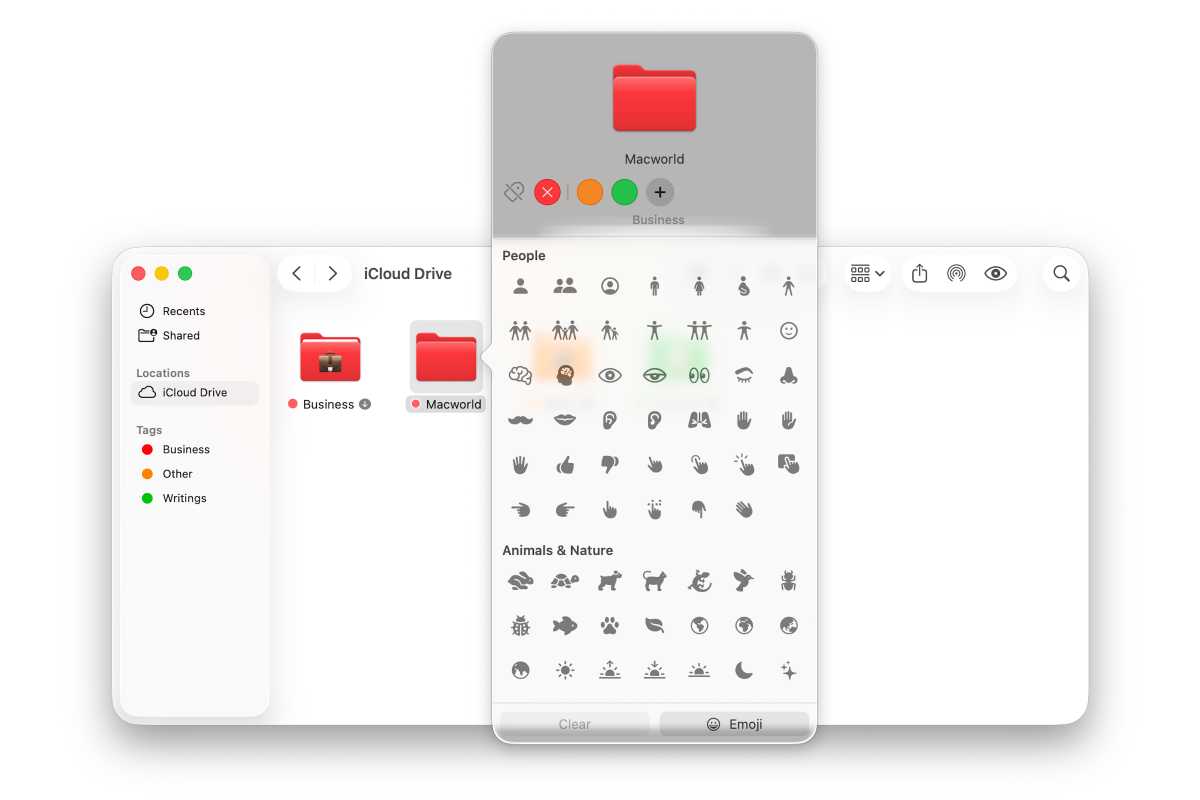
- Pick one of your tags to change the color of the folder accordingly.
Foundry
- You can undo the change by following the same steps.
Tip: If you don’t want the tag’s color to reflect on the folder, turn off the Tint folders based on tags toggle in the Tags section of Finder Settings.
Add a symbol or emoji
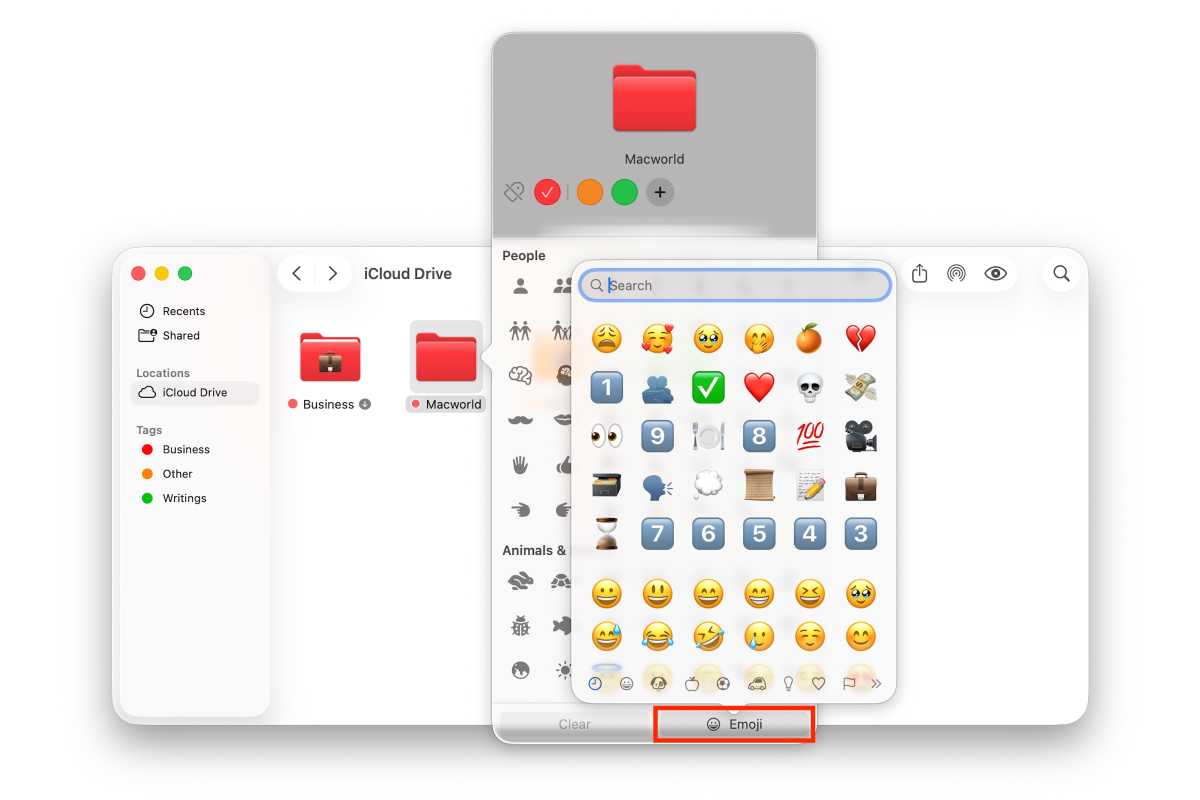
You can also visually distinguish your folders by adding symbols or emojis. To do so:
- Locate the desired folder in the Finder.
- Right-click it, and select Customize Folder.
- Pick one of the default symbols or opt for an emoji instead.
Foundry
- To undo the change, tap the Clear button towards the bottom left of the same menu.
If you’re emailing someone a compressed folder, they’ll still be able to view your symbol/emoji after they unzip it, if they are also using macOS Tahoe. Unlike tags or colors, these preferences aren’t excluded when sharing with others.
Change the folder’s icon
If changing the color and adding an emoji aren’t sufficient, you can skip them and change the folder’s icon altogether. All you have to do is:
- Right-click a folder in Finder and select Get Info.
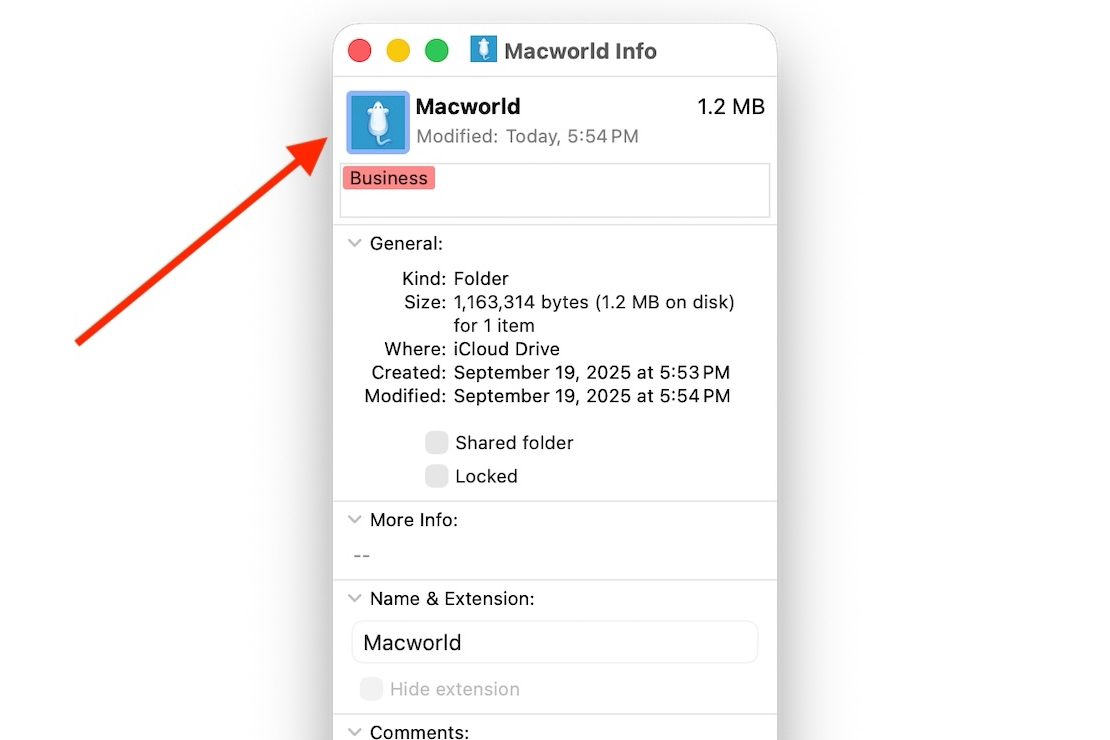
- See the icon in the upper left of the Get Info window? That’s the icon; ignore the larger Preview image at the bottom. Drag the desired image to the icon.
Foundry
- The chosen image will now appear as the folder’s icon.
- To undo, left-click the icon in the Get Info window and press the Delete key.
Rename the folder
Sometimes a distinct name is all it takes to make a folder stand out. To rename a folder:
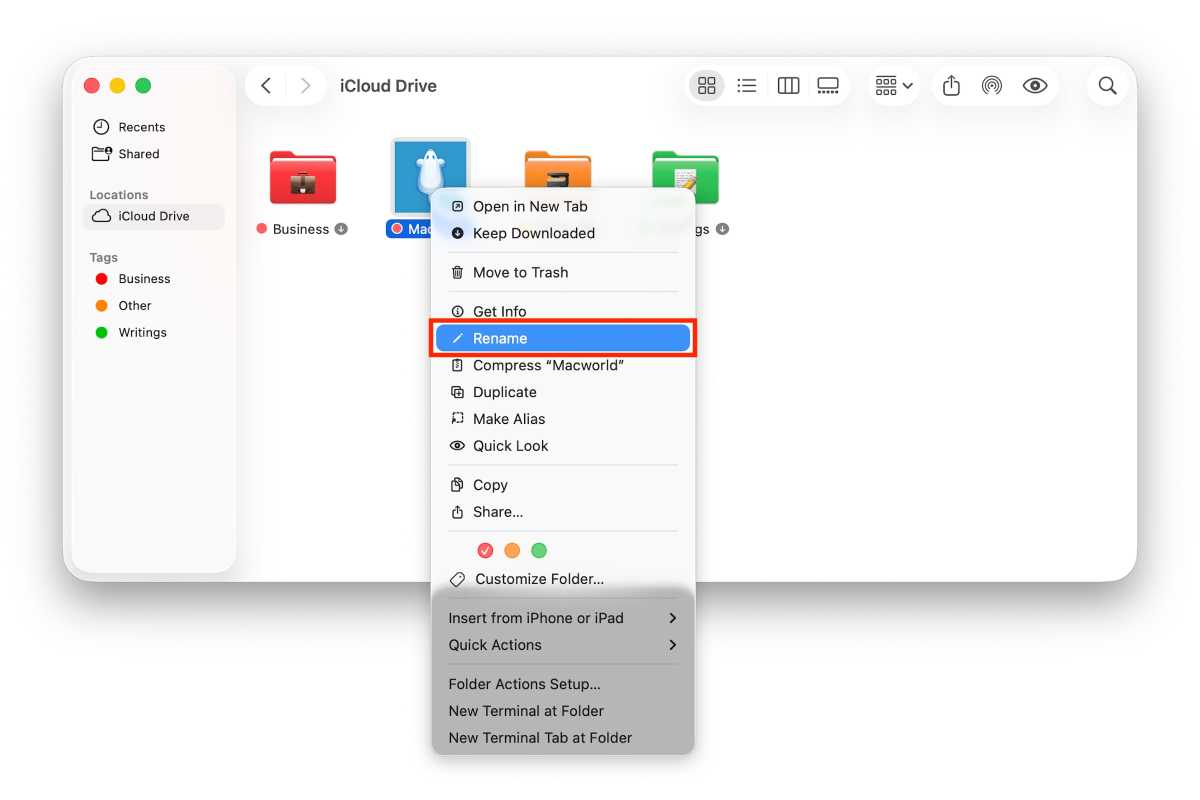
- Right-click the folder in Finder.
- Select Rename, and type the desired phrase.
Foundry
- Click anywhere in the Finder window to save your changes.
Tip: You can left-click a folder and press the Return key to quickly enter renaming mode.
Choose a default color
If the default blue look isn’t your favorite, you can change the color for all of your folders in one go. This spares you from needing to assign tags individually if you plan on applying the same shade universally.
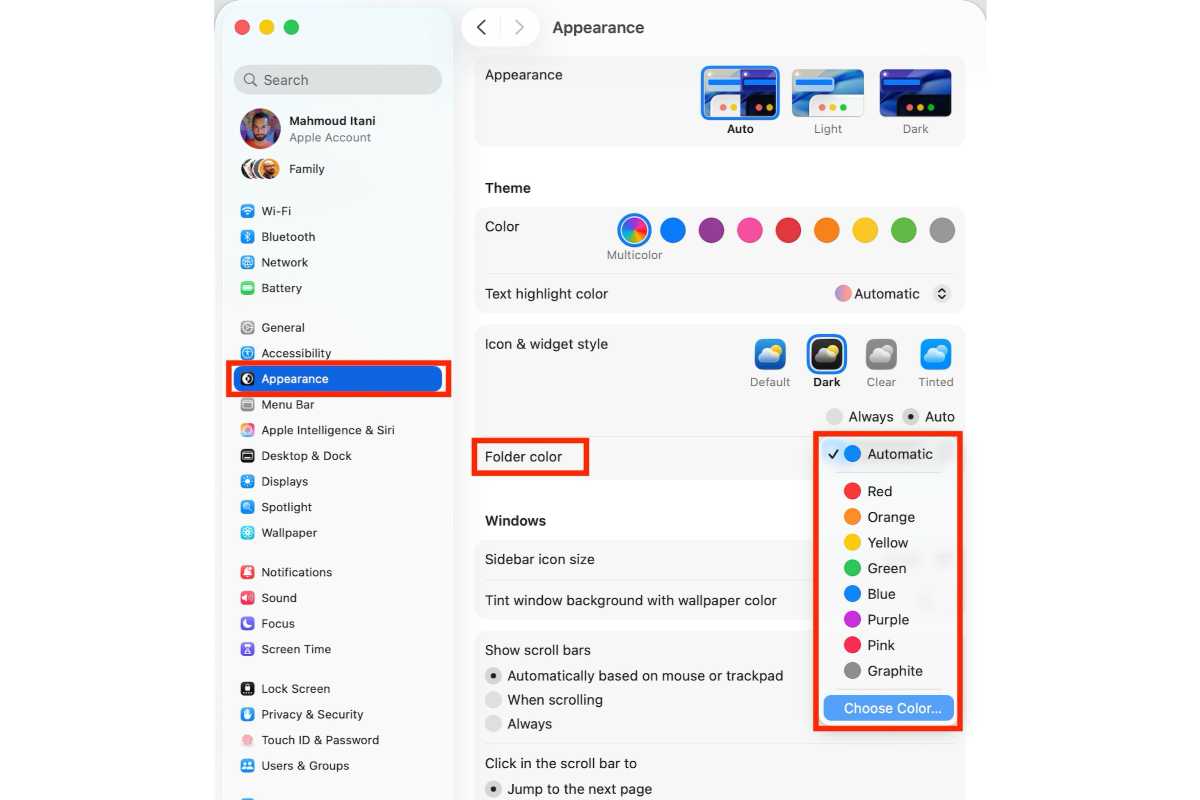
- Launch the System Settings app, and head to the Appearance section.
- Under Folder color, you can pick between over half a dozen preset shades or choose a custom color.
Foundry
- You can always revert by visiting the same section and adjusting the color accordingly.
