








A remote desktop lets you control another computer over the internet as if you were sitting right in front of it. You can open files, run programs, and use it just like your own PC, even from hundreds of miles away. You might not need this kind of access all the time, but when you do, a good remote desktop app can be incredibly useful. One of the simplest ways to connect to a Windows machine is through Chrome Remote Desktop.
This free tool from Google lets you remotely access your computer from pretty much anywhere—your laptop, phone, tablet, you name it. It’s also surprisingly simple to set up. You install a small extension, sign in with your Google account, and you’re basically good to go. There’s no need for complicated networking knowledge or a PhD in Computer Science to use it.

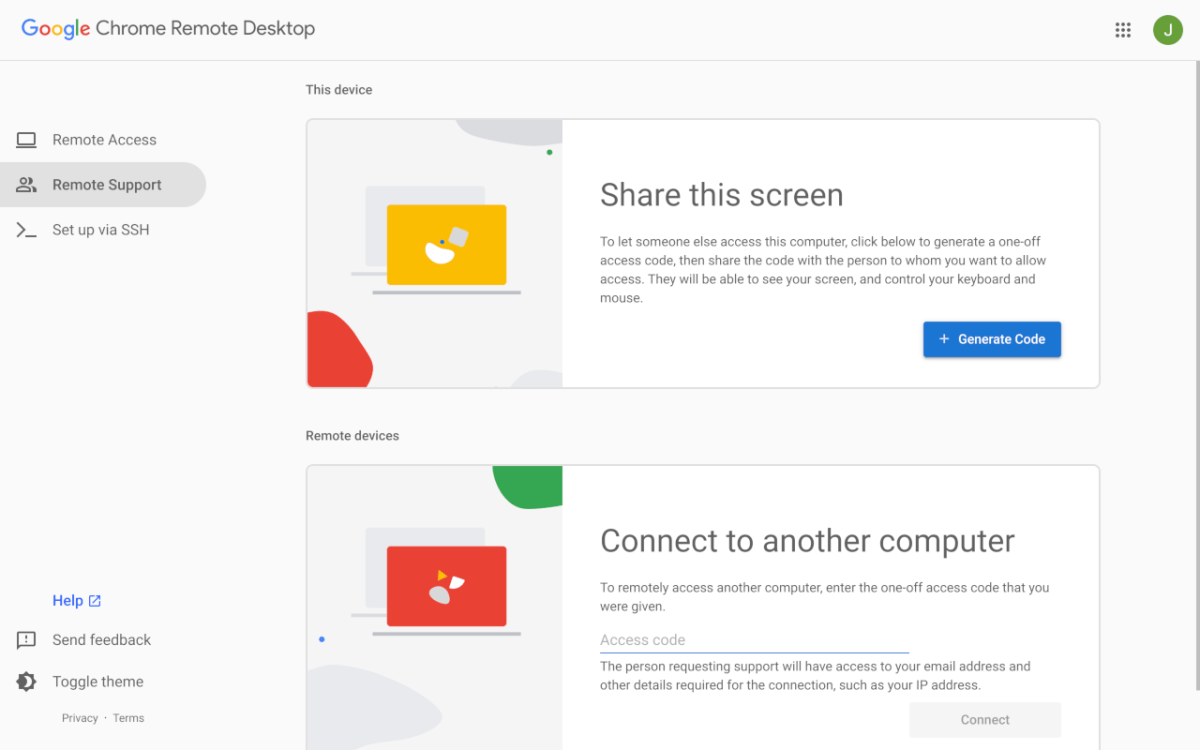
Once you’re connected, you can open files, run programs, or troubleshoot issues in real time on the remote PC. It’s especially handy if you forget an important file at home or need to quickly jump into your desktop while traveling. I use it all the time to help my less tech-savvy friends and family without having to physically be there—this way I can get everything fixed before I visit for the holidays.
Chrome Remote Desktop isn’t trying to be some ultra-advanced enterprise tool. Compared to paid options, it’s a bit lighter on features—no built-in chat or fancy multi-user controls—but you don’t need those for simple tasks anyway. It focuses on doing the basics really well, providing fast, reliable remote access without much hassle.
If you live in the Chrome ecosystem like me, or you just need a simple way to access desktops remotely, this should be your go-to. Give Chrome Remote Desktop a try next time you’re traveling or a faraway friend is in need of your elite tech skills.
For more fun and helpful website and app recommendations, be sure to subscribe to our PCWorld Try This newsletter.


