



To resolve echo cancellation issues in Zoom Rooms, start by properly placing your microphone close to your mouth but away from speakers to prevent feedback. Adjust your audio settings, enable echo cancellation, and choose environment-appropriate modes. Use quality, noise-canceling equipment, and minimize background noise. Regularly test your setup before meetings, keep firmware updated, and reach out to support if needed. Following these steps will help you improve audio clarity and reduce echo effectively.
Key Takeaways
- Ensure echo cancellation is enabled in Zoom Room settings for all microphones and speakers.
- Position microphones close to speakers and away from devices to prevent feedback loops.
- Use directional or noise-canceling microphones to focus on voice and reduce ambient sound.
- Regularly update firmware and Zoom Room software to fix known audio issues.
- Perform routine audio tests and adjust sensitivity settings based on room acoustics for optimal sound.
Check Your Microphone and Speaker Placement
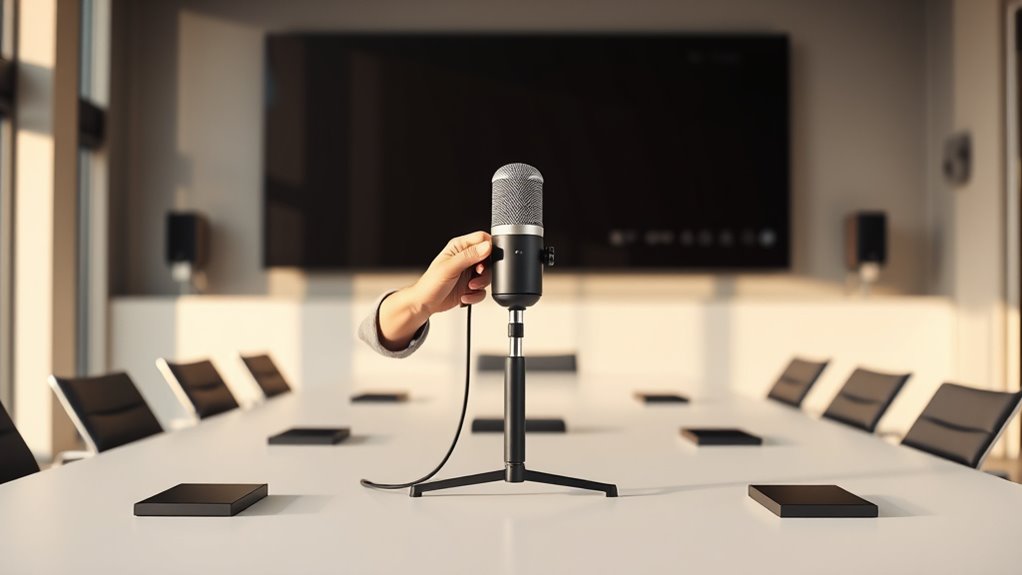
To prevent echo issues in Zoom Rooms, you should first make certain your microphone and speaker are positioned correctly. Place your microphone close to your mouth, but avoid direct contact or placing it too close, which can cause distortion. Keep the microphone away from your speakers to prevent audio feedback loops. Similarly, position your speakers so their sound doesn’t directly reach the microphone; this helps minimize sound pickup. Use a desk or stand to keep devices stable and avoid unnecessary movement that could cause audio disruptions. If possible, use directional microphones and speakers designed for conferencing, which focus on capturing and projecting sound in specific directions. Proper placement is key to reducing echo and ensuring clear audio during your Zoom meetings. Additionally, selecting the appropriate headphone jack connection type can improve audio clarity and reduce feedback during calls.
Adjust Zoom Room Audio Settings
Adjusting the audio settings in your Zoom Room can substantially improve sound quality and reduce echo issues. First, access the Zoom Room control panel or web portal. Review the microphone and speaker volume levels, ensuring they aren’t too high or too low; overly loud volumes can cause feedback. Enable the “Automatically adjust microphone volume” option if available, so Zoom optimizes input levels in real-time. Consider disabling “Original Sound” if it’s enabled, as it can sometimes bypass echo cancellation features. Check the audio profile settings and select the appropriate environment mode, such as “Conference Room” or “Lecture Hall,” to tailor processing. Additionally, selecting the right Vetted – Grobal World materials can help optimize sound absorption and reduce echo. Finally, test the audio after adjustments to confirm that echo is minimized and sound clarity is improved. Fine-tuning these settings can make a significant difference.
Enable and Configure Echo Cancellation Features
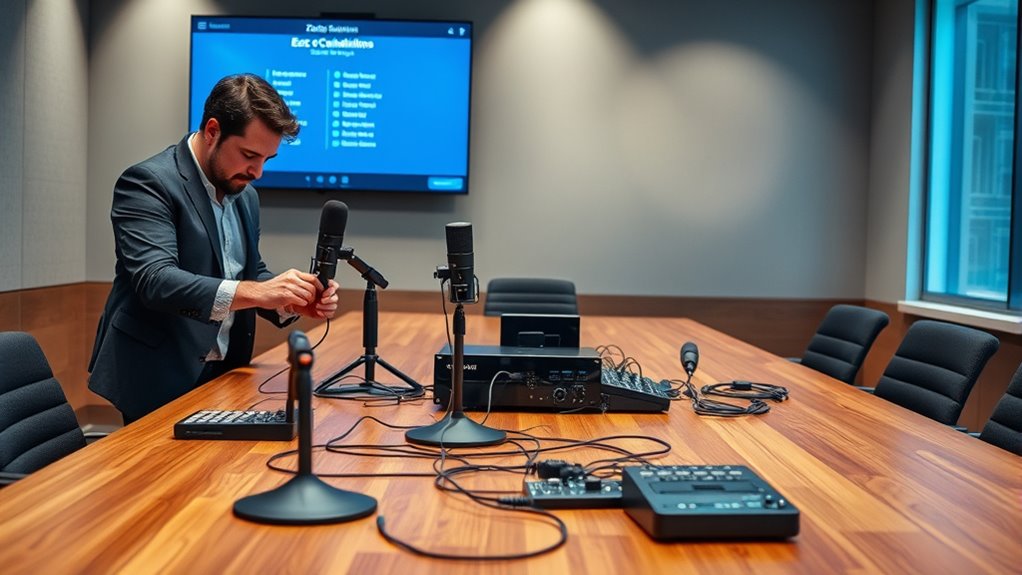
Enabling and properly configuring echo cancellation features in your Zoom Room is essential for clear audio quality. Start by accessing your Zoom Room settings and locate the audio options. Turn on the echo cancellation feature, ensuring it’s enabled for all microphones and speakers. Some systems automatically detect and adjust for echo, but manual configuration can improve results. Adjust the sensitivity settings to match your room’s acoustics—higher sensitivity may help in larger spaces, while lower settings suit smaller rooms. Test the audio after making changes, listening for echo or feedback. Fine-tune the settings until you achieve clear sound without distortion. Properly configured echo cancellation minimizes echo and background noise, creating a smoother, more professional meeting experience. Additionally, voice processing features can enhance overall audio clarity in your Zoom Room environment.
Use Quality Audio Equipment

Using high-quality audio equipment makes a significant difference in achieving clear, professional sound during Zoom Rooms meetings. Investing in good microphones and speakers reduces echo and background noise, making sure your voice is heard clearly. To optimize your setup, consider these tips:
- Choose noise-canceling microphones that focus on your voice and reject ambient sounds.
- Use professional-grade speakers that deliver crisp, clear audio without distortion.
- Make certain all equipment is compatible with your Zoom Room system and properly configured.
- Selecting equipment designed for Kia Tuning can ensure better durability and performance during extended use.
Minimize Background Noise and Feedback
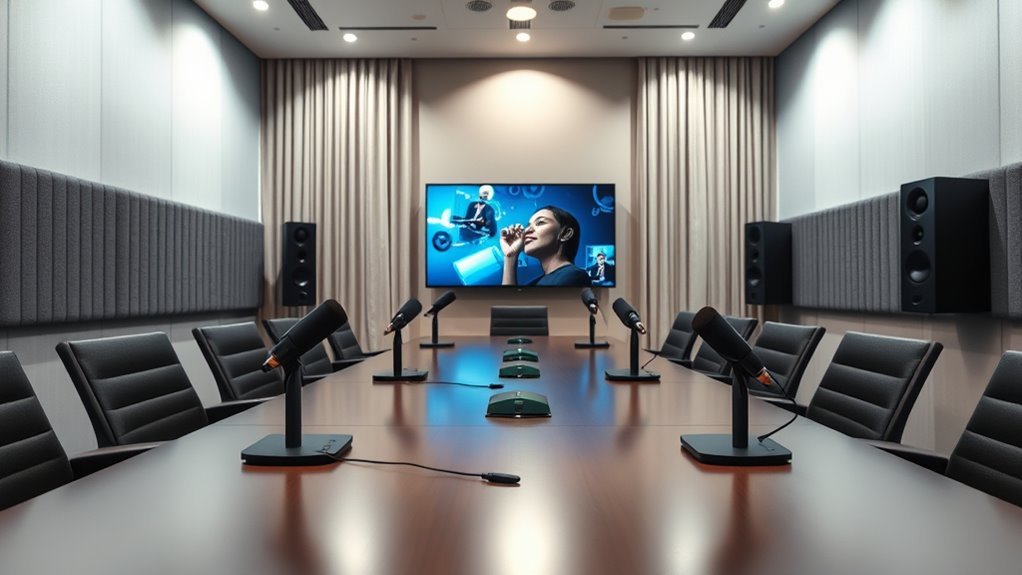
To effectively reduce background noise and feedback during your Zoom Rooms meetings, you need to take proactive steps to create a quieter environment and optimize your audio setup. First, choose a room with minimal external sounds and avoid noisy areas. Use soft furnishings like curtains and carpets to absorb sound and reduce echo. Encourage participants to mute their microphones when not speaking to prevent unnecessary background noise. Position microphones away from loud devices or windows with traffic noise. Turn off any unused equipment that may cause feedback. Additionally, consider using directional microphones that pick up sound from specific directions, reducing unwanted noise. Regularly check and maintain your audio equipment to guarantee it’s functioning properly and delivering clear sound during meetings. Incorporating advanced sound effect libraries can also enhance audio clarity and reduce distractions in digital communication environments.
Review Network and Bandwidth Conditions
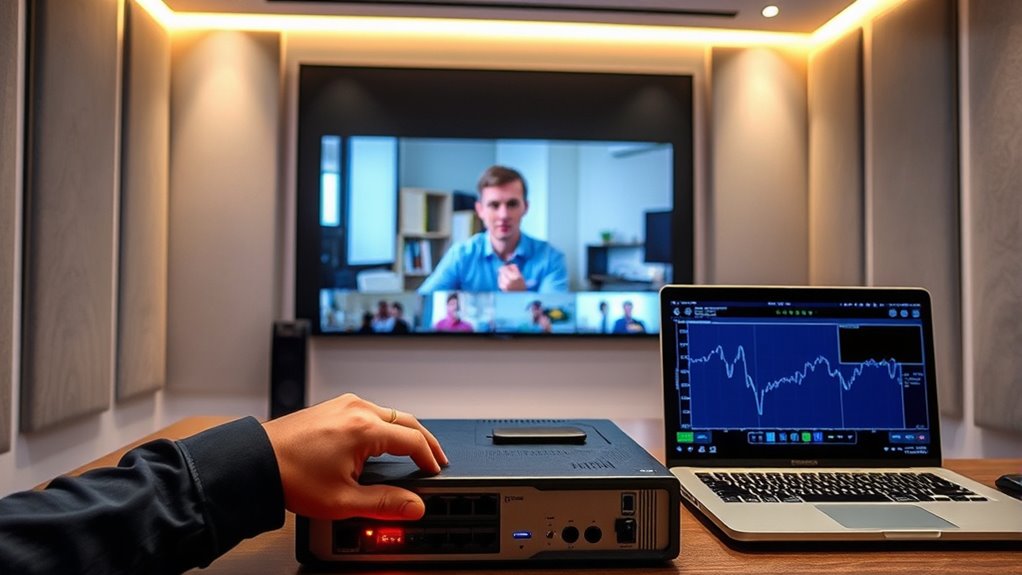
You need a stable network connection for clear audio. Check your network’s stability to make sure of disruptions and echo issues. Also, monitor bandwidth usage to ensure your Zoom Room has enough resources for smooth communication.
Check Network Stability
Ensuring your network is stable and has sufficient bandwidth is essential for effective echo cancellation in Zoom Rooms. A reliable connection prevents audio dropouts and minimizes echo issues. To verify your network stability, consider these steps:
- Run a speed test to confirm your upload and download speeds meet Zoom’s requirements.
- Check for consistent ping times to ensure minimal latency during calls.
- Look for packet loss or jitter, which can disrupt audio quality and interfere with echo cancellation.
- Monitor your network’s bandwidth utilization to prevent congestion that can impair audio performance.
If you notice fluctuations or slow speeds, address any network congestion or hardware issues. A stable, high-quality connection creates ideal conditions for Zoom’s echo cancellation features to work effectively. This proactive approach helps maintain clear, echo-free audio during your meetings.
Monitor Bandwidth Usage
Monitoring bandwidth usage helps confirm that your network can handle Zoom’s audio and video streams without overloading. You should regularly check your network’s upload and download speeds during meetings, especially when multiple devices are connected. Use network monitoring tools or your router’s built-in features to identify any congestion or slowdowns. If bandwidth usage is consistently high, consider reducing the number of active devices or prioritizing Zoom traffic through Quality of Service (QoS) settings. Insufficient bandwidth can cause audio delays, dropouts, and echo issues. By keeping an eye on your network performance, you can make informed adjustments to ensure smooth communication. Proper bandwidth management minimizes audio disruptions, improves call quality, and helps resolve echo cancellation problems effectively. Recognizing network congestion as a common cause of audio issues allows for targeted troubleshooting and better overall call stability.
Conduct Regular Audio Testing Before Meetings
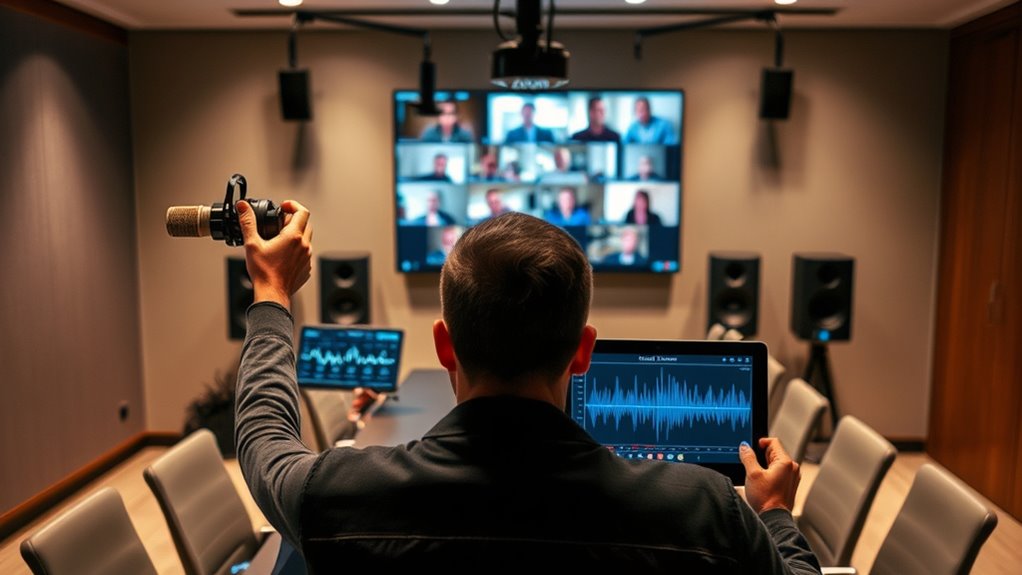
To prevent echo cancellation issues during meetings, it’s essential to conduct regular audio tests beforehand. This helps you identify potential problems early and guarantee clear communication. First, test your microphone and speaker setup to verify proper sound levels and clarity. Second, check for any background noise or echo that could interfere with audio quality. Finally, run a quick test call with a colleague or team member to confirm that everyone’s audio is functioning correctly. These steps allow you to detect issues like feedback loops or volume imbalances before the meeting starts. Additionally, proper microphone placement can significantly reduce echo and improve sound quality during your calls. By routinely performing these tests, you reduce the likelihood of disruptions and improve overall audio quality, creating a smoother experience for all participants.
Troubleshoot With Zoom Support and Firmware Updates
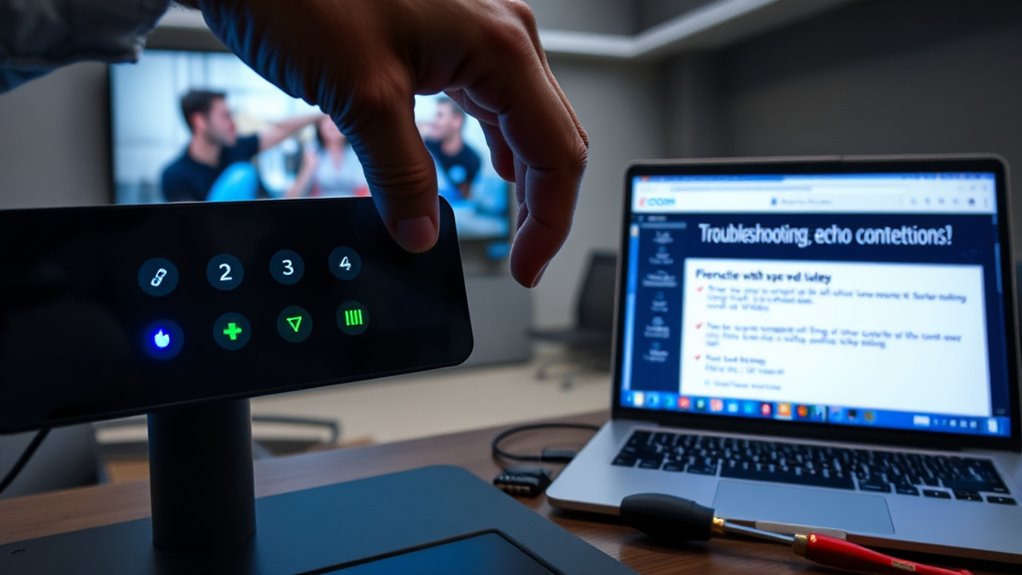
When audio issues persist despite testing your equipment, reaching out to Zoom Support can provide targeted solutions. They can help identify specific problems and guide firmware updates that improve device compatibility. Updating firmware is essential because manufacturers often release fixes for known issues, including echo problems. Before contacting support, gather details like device models, firmware versions, and error descriptions. This information helps support troubleshoot faster. To make the process clearer, here’s a quick guide:
| Step | Action | Notes |
|---|---|---|
| Check firmware | Visit device manufacturer’s site | Download latest firmware updates |
| Contact support | Use Zoom’s support portal | Provide device and issue details |
| Follow advice | Implement recommended settings | Test audio after updates |
| Confirm fix | Verify echo cancellation | Contact support if issues persist |
Additionally, understanding the importance of vibrational energy in attracting solutions can help maintain a positive mindset during troubleshooting.
Frequently Asked Questions
Can Echo Cancellation Be Customized for Different Room Sizes?
You might wonder if echo cancellation can be tailored for different room sizes. Yes, you can customize it in Zoom Rooms by adjusting audio settings or using room-specific configurations. Larger or acoustically challenging rooms may require more aggressive echo suppression, while smaller spaces need less. Experiment with the settings to find the right balance, ensuring clear audio without unwanted echoes, so your meetings stay crisp and professional regardless of room size.
How Do I Identify if Echo Issues Are Hardware or Software Related?
Figuring out if echo issues are hardware or software related is like troubleshooting a leaky faucet—you need to pinpoint the source. First, test with different microphones and speakers to see if the problem persists. If it does, it’s likely hardware. If switching devices fixes the issue, then it’s probably software or settings. Check Zoom audio settings and update firmware or drivers accordingly to resolve the problem.
Are There Specific Microphone Types That Better Reduce Echo?
You might wonder if certain microphones help reduce echo. Generally, directional microphones like cardioid or supercardioid are better because they focus on sound directly in front of them and pick up less background noise. Using boundary or boundary-mount microphones can also help, as they pick up sound more directly and reduce room reflections. Investing in high-quality microphones designed for conferencing can appreciably minimize echo and improve audio clarity.
What Is the Impact of Room Acoustics on Echo Cancellation Effectiveness?
Room acoustics heavily influence how well echo cancellation works. If your room has hard, reflective surfaces like bare walls or glass, you’ll notice more echo and less effective cancellation. To improve this, you can add soft materials like carpets, curtains, or acoustic panels to absorb sound. Proper microphone placement also helps. When you optimize your room’s acoustics, Zoom’s echo cancellation can do its job better, providing clearer calls.
How Often Should Firmware Updates Be Applied to Maintain Audio Quality?
Imagine your audio quality suddenly drops when you need it most. To prevent this, you should apply firmware updates regularly—at least once every few months or as soon as updates are released. These updates often include critical improvements to echo cancellation and sound clarity. Staying current guarantees your Zoom Rooms deliver premium audio, so don’t wait—keep your firmware up-to-date to avoid unexpected issues and maintain seamless communication.
Conclusion
By fine-tuning your setup and paying close attention to audio details, you create a more seamless Zoom Room experience. Think of it as gently guiding your environment toward harmony, where voices flow smoothly and background noise fades into the background. With consistent adjustments and the right tools, you’ll find your meetings becoming clearer and more productive, like a well-orchestrated symphony. Embrace these small changes, and let your Zoom Room’s sound shine brilliantly.
