



Apple hides some of its best features through obscurity, not intentionally. For many years, you have been able to select and change the icon for any file, folder, volume, or drive. But it’s a multi-step process that requires starting with the right image.
You can find the source icons all over the place. Generic ones are available at places like IconArchive and DeviantArt (which has a lot of NSFW content, but not drive related); companies that sell drives often make downloadable icons available of all the models they sell, like One World Computing and LaCie; and you can copy an icon from an existing volume. You can also find little projects, likese these 20 icons made from historic Japanese patterns by a designer at software maker Panic in 2012.

A designer at Panic made these lovely Waritsuki drive icons.
(In the below steps, don’t select or drag onto the larger icon shown at the bottom of Get Info if the Preview section is expanded. That shows a larger size of the item icon, but it can’t be copied, and dragging onto it, is like dragging onto a folder or volume.)
To copy an icon from an existing volume, folder, or other item in the Finder:
- Select the item.
- Choose File > Get Info (or press Command-I).
- Click the small icon in the upper-left corner and press Command-C to copy it.
To replace the icon on an existing volume or other kind of item in the Finder:
- Find the item you want to use. If it’s another icon already in use, follow the steps above to copy it to the clipboard.
- Select the target item.
- Choose File > Get Info (or press Command-I).
- If the icon is in the clipboard, select the icon in the upper-left corner and paste; if it’s a downloaded file, you can just drag it from the Finder over the current item in the upper-left corner.
In some cases, you may be prompted to enter your password (or an administrator’s account and password) to complete the change. In macOS Tahoe, you may have to restat the Mac–we’ve seen instances where the change goes into effect immediately, and other times the change wouldn’t appear until we restarted.
Replace macOS Tahoe’s SSD icon
As we pointed out in our article about the new icons in macOS Tahoe, Apple has replaced the hard drive icon with an icon of a silver box (it’s supposed to represent an SSD, which all Macs use now). It’s not a bad-looking icon, but it’s not as cool as the hard drive icon.
If you have installed Tahoe and would rather use the hard drive icon, you can replace the SSD icon. First, get the hard drive icon by downloading this file:
That file is an image of the hard drive icon in Apple Icon Image format. It is compressed as a .zip file, so after you download it, you need to decompress it by double-clicking it.
Once you’ve done that, open the Get Info window of the SSD, then click and drag the file onto the icon in the top left of the window. You can also open the ICNS file in Preview, select it all (Command-A), copy it (Command-C), and then paste it onto the Get Info icon.
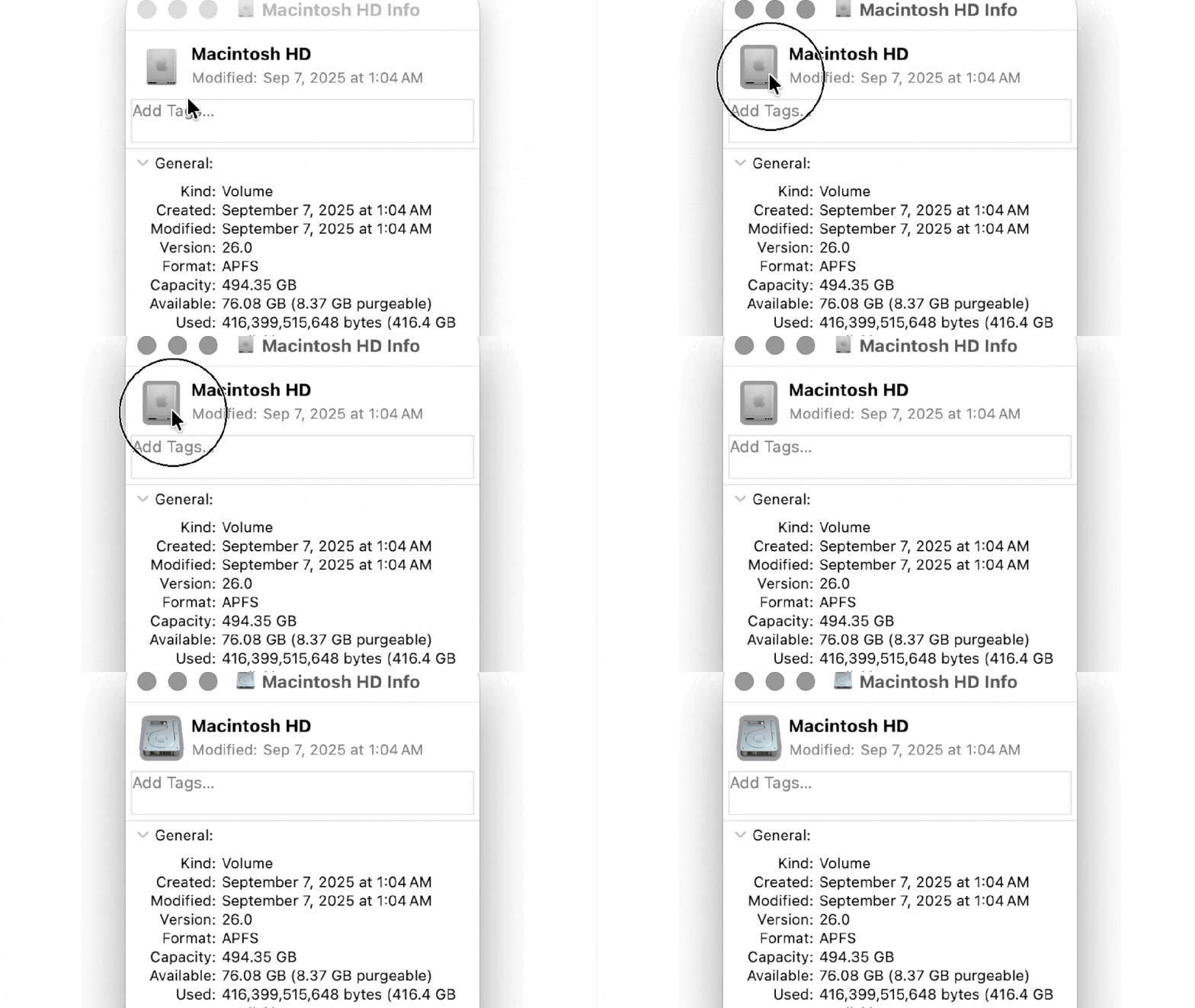
Foundry
As we mentioned before, you may have to restart your Mac for the changes to take effect.
Create your own icons
You can make your own custom icons quite easily. Finder item icons are square, and are best created at 1024 by 1024 pixels in any software you use to edit or create art or images from scratch, and then crop or export to 1024 by 1024 pixels.
The Finder relies on the ICNS file format, which stores multiple resolutions of items, so you can opt to customize the appearance at sizes from 16 by 16 up to that full-sized 1024 by 1024 pixels, and macOS always picks the most appropriate or closest size for its purposes.
However, if you just create the largest size, you can use free online tools or free apps in the Mac App Store to convert your regular image file into a properly formatted ICNS file. Image2icon, for instance, allows drag-and-drop simplicity for free, and offers more options with in-app purchases. Cloudconvert offers a web-based utility for converting all manner of files, including a huge array of formats into ICNS.
This Mac 911 article is in response to a question submitted by Macworld reader Luis.
